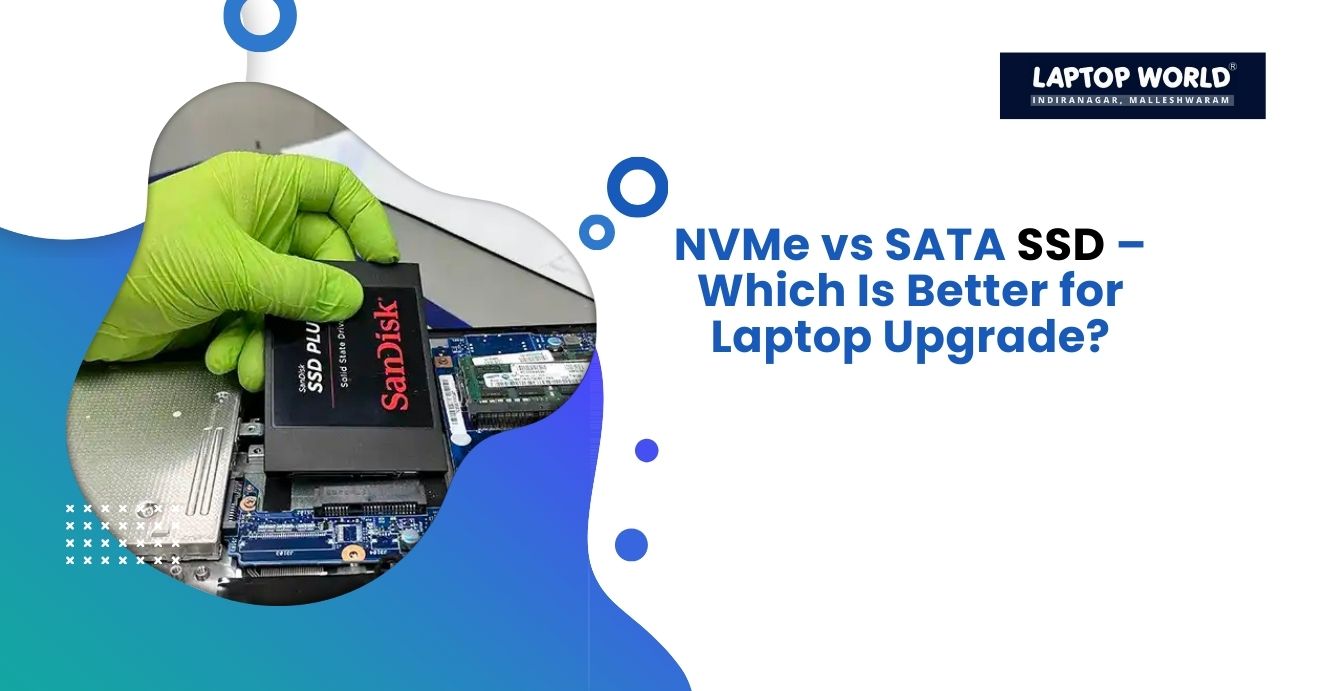
NVMe vs SATA SSD – Which Is Better for Laptop Upgrade?
Upgrading your laptop storage can dramatically improve performance, boot times, and overall responsiveness. If you’re planning a laptop SSD upgrade, you’ll likely come across two main types of drives: NVMe SSDs and SATA SSDs. Both offer benefits over traditional hard drives, but choosing the right one can make a noticeable difference in speed, efficiency, and value for money. In this guide, we’ll break down…
Upgrading your laptop storage can dramatically improve performance, boot times, and overall responsiveness. If you’re planning a laptop SSD upgrade, you’ll likely come across two main types of drives: NVMe SSDs and SATA SSDs. Both offer benefits over traditional hard drives, but choosing the right one can make a noticeable difference in speed, efficiency, and value for money. In this guide, we’ll break down the differences, advantages, and limitations of NVMe and SATA SSDs so you can make an informed decision.
Understanding SATA SSDs
SATA (Serial ATA) SSDs have been around longer and were designed as a direct replacement for traditional HDDs. They connect through the SATA interface, which is common in most laptops and older desktops.
Key Features of SATA SSDs
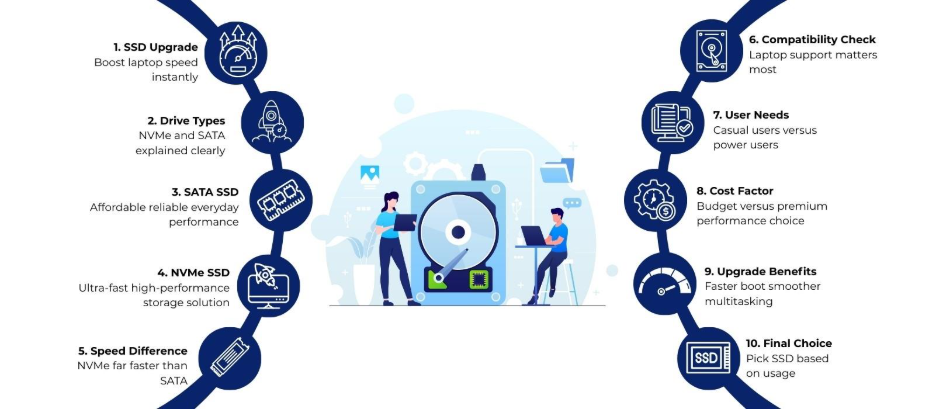
- Speed: SATA SSDs usually offer read and write speeds up to 550 MB/s, significantly faster than a traditional hard drive but slower than NVMe drives.
- Compatibility: SATA SSDs work with almost all laptops that support 2.5-inch drives or SATA connections, making them highly versatile.
- Price: They are generally more affordable per gigabyte compared to NVMe drives.
- Storage Options: Available in large capacities, often up to 4TB, without high cost.
SATA SSDs are ideal for users who want a noticeable speed boost without breaking the bank. They excel at general computing tasks like web browsing, office applications, and media consumption.
Understanding NVMe SSDs
NVMe (Non-Volatile Memory Express) is a newer technology that connects via the PCIe interface. Therefore, it operates at much higher speeds and takes full advantage of modern SSD performance.
Key Features of NVMe SSDs
- Speed: NVMe drives can reach read/write speeds of 3,000 MB/s or higher, up to 5-7 times faster than SATA SSDs.
- Latency: They provide lower latency, which translates to faster application loading, quicker boot times, and smoother multitasking.
- Form Factor: NVMe SSDs usually come in M.2 form factor, which is smaller and more compact than traditional 2.5-inch drives.
- Advanced Performance: Ideal for heavy tasks like gaming, video editing, 3D rendering, and large data transfers.
NVMe SSDs are perfect for users looking to maximize performance. However, they come at a higher price point.
Comparing NVMe and SATA SSDs
When deciding between NVMe and SATA for a laptop SSD upgrade, several factors come into play:
1. Speed and Performance
NVMe SSDs clearly outperform SATA SSDs in raw speed. Boot times, file transfers, and application launches are much faster with NVMe drives. For users running resource-heavy software or large data projects, NVMe provides a tangible performance improvement.
2. Price and Value
SATA SSDs are more budget-friendly, offering good performance improvements over HDDs without a significant investment. If your priority is upgrading storage and general laptop responsiveness without spending a lot, SATA SSDs provide excellent value.
3. Compatibility
Not all laptops support NVMe SSDs. Therefore, you must check your laptop’s motherboard specifications before buying. SATA SSDs, on the other hand, are compatible with nearly all laptops that have a SATA port.
4. Use Case
- SATA SSD: Suitable for casual users, office work, and general performance upgrades.
- NVMe SSD: Ideal for power users, gamers, and professionals handling video editing, 3D modelling, or large datasets.
5. Longevity and Reliability
Both NVMe and SATA SSDs use flash memory and offer similar durability for regular use. Modern drives from reputable brands have high TBW (Terabytes Written) ratings, meaning they can handle years of heavy workloads.
Why Upgrade Your Laptop SSD?
A laptop SSD upgrade can make your device feel faster and much more responsive. Benefits include:
- Faster Boot Times: Windows or other operating systems load in seconds.
- Improved Application Performance: Programs launch and run faster, improving productivity.
- Quieter Operation: SSDs have no moving parts, reducing noise and heat compared to HDDs.
- Better Multitasking: NVMe SSDs, in particular, handle multiple tasks and large files efficiently.
Whether you choose NVMe or SATA, upgrading to an SSD is one of the most effective ways to breathe new life into a laptop.
Practical Considerations Before Buying
- Laptop Compatibility: Verify whether your laptop supports NVMe (M.2 slot with PCIe) or only SATA.
- Storage Needs: Determine your required capacity. Most users benefit from 512GB or 1TB drives.
- Budget: Balance cost with performance. SATA SSDs are cheaper, while NVMe offers premium speed.
- Form Factor: Make sure the drive fits physically in your laptop.
- Brand and Warranty: Choose SSDs from reliable brands with at least a 3-year warranty for peace of mind.
NVMe vs SATA: Which Is Better for Your Laptop SSD Upgrade?
The answer depends on your priorities:
- If speed and high-performance tasks are your top priority, NVMe is the best choice.
- If affordability and compatibility are more important, SATA SSDs offer great improvements over HDDs and older SSDs.
Even a SATA SSD is a big upgrade from a traditional hard drive. But if your laptop supports NVMe and your budget allows, opting for NVMe can future-proof your system and provide the fastest possible performance.
Installing Your SSD
Upgrading your laptop storage is usually straightforward. Here’s a basic outline:
- Backup Data: Copy all important files to an external drive or cloud storage.
- Check Compatibility: Verify your laptop supports the chosen SSD type.
- Physically Install: Insert the SSD into the M.2 slot (NVMe) or 2.5-inch SATA bay.
- Clone or Reinstall OS: Use disk cloning software to copy your operating system, or perform a fresh OS installation.
- Boot and Optimize: Boot from your new SSD and configure system settings for maximum performance.
If you’re not comfortable opening your laptop, get professional help from Laptop World, a multi-brand store in Malleshwaram.
Final Thoughts
A laptop SSD upgrade can make a big difference in speed, efficiency, and user experience. By evaluating your laptop’s support, budget, and performance needs, you can select the SSD that best matches your requirements and unlock a faster, smoother computing experience.
About Laptop World
With 20 years of experience in Retail, Laptop World is Bangalore’s oldest multi-brand laptop store, offering a personalized customer experience. We are unbiased towards any particular brand, dealing with top names like HP, Lenovo, Dell, Asus, and Apple. Our commitment to excellent customer service sets us apart.
For businesses, our corporate division, Nurture IT, provides comprehensive IT solutions tailored for startups in Indiranagar, ensuring all your IT needs are met in one place. From laptops to networking, servers, Information Security, End User Protection – we have you covered.
FAQs
1. Can I replace my laptop HDD with an NVMe SSD?
Yes, but only if your laptop has an M.2 PCIe slot. Otherwise, SATA SSDs are the alternative.
2. Is NVMe SSD always better than SATA SSD?
NVMe SSDs are faster, but SATA SSDs still provide substantial performance gains at a lower cost and broader compatibility.
3. Will upgrading to an SSD improve battery life?
Yes, SSDs consume less power than HDDs, which can slightly improve battery life.
4. Can I use both NVMe and SATA SSDs in one laptop?
Some laptops support both, but it depends on the available slots and motherboard specifications.
5. How do I choose the right capacity for my SSD upgrade?
For general use, 512GB is often sufficient. Power users may prefer 1TB or higher for large files and applications.