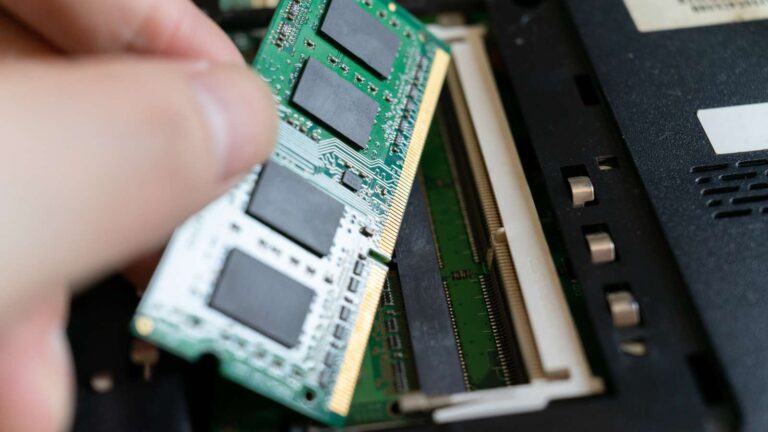

Maintaining Gaming Laptops: Keeping Thermals in Check
Discover the best laptops for students, perfect for graphic design, animation, and media. Explore top picks that combine performance, portability, and value.
Gaming laptops deliver powerhouse performance in a compact form, but that comes with a challenge: heat buildup. Over time, high temperatures can throttle performance, shorten hardware lifespan, and disrupt intense sessions. This is where laptop maintenance tips become important for any gamer looking to keep their machine running smoothly.
In this guide, we’ll explore practical strategies focused on thermal control, drawing from proven methods to help you maintain optimal conditions without compromising on playtime.

Why Thermal Management Matters for Gaming Laptops
Gaming laptops pack high-end GPUs and CPUs that generate significant heat during demanding tasks like rendering complex graphics or running multiplayer battles. When temperatures climb too high—often above 90°C—components may throttle to prevent damage, which may lead to frame drops and lag. Besides, consistent overheating can also degrade battery life and cause long-term issues like solder joint failures.
Statistics show that poor thermal handling is a top reason for hardware failures in portable gaming rigs. For example, regular exposure to dust and poor airflow can raise internal temps by 10-20°C, which impacts everything from processor speeds to overall system stability. However, by incorporating laptop maintenance tips into your routine, you can reduce those risks and get more life out of your device. Think of it as preventive care that keeps your investment performing at peak levels for years.
Essential Cleaning Practices as Core Laptop Maintenance Tips
Dust is the silent enemy of any gaming laptop. It clogs vents, fans, and heatsinks, which restricts airflow and makes your components work harder. To combat this, start with routine cleaning every three to six months, depending on your environment.
Start by powering down your laptop and unplugging it. Use a can of compressed air to blow out debris from intake and exhaust vents. Hold the can upright to avoid moisture, and direct short bursts into the openings while holding fans in place to prevent spinning damage. For a deeper clean, consider disassembling the bottom panel if you’re comfortable, as many models have accessible screws for this purpose. Wipe heatsinks gently with isopropyl alcohol on a microfiber cloth, but avoid touching sensitive parts.
If dust accumulates quickly in your space, invest in air filters or keep the laptop elevated during use. This simple step can drop temperatures by up to 15°C in dusty rooms. Remember, neglecting this can lead to thermal throttling, where your GPU downclocks to manage heat, robbing you of that smooth 144Hz experience.
Optimizing Your Setup Environment for Better Thermals
Where and how you use your gaming laptop plays a big role in heat dissipation. Soft surfaces like beds or laps block vents, which trap hot air and spike temperatures. Therefore, always place it on a hard, flat surface such as a desk to allow free airflow underneath.
Room temperature matters too. Aim for a cool, well-ventilated area below 25°C. Direct sunlight or enclosed spaces amplify heat, so position your setup away from windows or heaters. Raising your laptop with risers or books can help with air circulation, just like a dedicated stand. For gamers in warmer climates, consider using the device in air-conditioned rooms during peak hours.
These environmental laptop maintenance tips might seem basic, but they form the foundation for preventing unnecessary thermal stress and maintaining consistent performance.
Software Solutions Among Key Laptop Maintenance Tips
Beyond hardware, software tweaks offer powerful ways to manage thermals. Start by updating your graphics drivers and BIOS through the manufacturer’s app. Outdated versions can cause inefficient power usage and lead to higher heat output.
Many gaming laptops come with control centers like Alienware Command Center. With these, you can set fan curves that put a higher priority on cooling than on silence during your sessions. Similarly, undervolting the CPU via tools like ThrottleStop or Intel XTU reduces voltage without sacrificing much speed, often lowering temps by 5-10°C. This technique limits power draw, making it ideal for prolonged use.
Power settings in Windows also help: switch to balanced mode when not gaming to cap CPU/GPU activity. Disable unnecessary background processes that hog resources, and scan for malware regularly, as infections can spike usage and heat. Integrating these software-focused laptop maintenance tips keeps your system efficient and cool under load.
Accessories That Enhance Thermal Control
Investing in the right accessories amplifies your cooling efforts. A quality cooling pad with built-in fans draws in cool air and expels hot exhaust, potentially reducing internal temps by 10-20°C during heavy gaming. Look for models with adjustable speeds and ergonomic designs that fit your laptop size.
Besides, laptop stands provide passive cooling by elevating the device and improving natural convection. Some even include USB hubs for added convenience. For the best setup, add an external monitor and peripherals. Closing the laptop lid shifts the workload off the built-in screen, which helps with thermal demands.
Don’t overlook simple add-ons like dust filters for vents or thermal pads for hot spots. These accessories complement core laptop maintenance tips, turning a standard rig into a thermally optimized beast.
Advanced Techniques: Thermal Paste Replacement and Beyond
For many enthusiasts, a new layer of thermal paste can change everything. The paste from the factory degrades over time and often loses its cooling power after just 1-2 years of heavy use. Fresh application of high-quality paste like Arctic MX-4 can improve heat transfer and drop CPU/GPU temps by 5-15°C. This involves disassembling the cooling assembly, cleaning old residue with alcohol, and applying a pea-sized dot before reassembling.
If your model allows, using better thermal pads on your VRAM or VRM components will improve heat dissipation. However, be careful; if you mishandle it or void the warranty, you might cause issues. For safe execution, talk to a laptop center that specializes in your model.
Overclocking enthusiasts should monitor closely, as pushing limits generates more heat. Use tools like HWMonitor or Core Temp to track readings in real-time. These advanced laptop maintenance tips require skill but yield significant rewards in thermal performance.
Monitoring Tools and Ongoing Best Practices
Staying vigilant with monitoring prevents surprises. Install software like HWInfo to display live temps, fan speeds, and usage graphs. Set alerts for thresholds, like 85°C, to pause and address spikes.
Incorporate habits like closing unused apps, avoiding simultaneous charging and gaming if possible, and giving the laptop breaks during marathon sessions. Additionally, annual professional servicing for deep cleaning can help catch issues early. By blending these monitoring strategies with daily laptop maintenance tips, you create a proactive approach that safeguards against thermal woes.
About Laptop World
With 20 years of experience in Retail, Laptop World is Bangalore’s oldest multi-brand laptop store, offering a personalized customer experience. We are unbiased towards any particular brand, dealing with top names like HP, Lenovo, Dell, Asus, and Apple. Our commitment to excellent customer service sets us apart.
For businesses, our corporate division, Nurture IT, provides comprehensive IT solutions tailored for startups, ensuring all your IT needs are met in one place. From laptops to networking, servers, Information Security, End User Protection – we have you covered.
FAQs
- Why is regular laptop maintenance important?
Regular upkeep helps your laptop run faster, prevents overheating, extends hardware life, and reduces the risk of sudden failures.
- Why is regular laptop maintenance important?
Regular upkeep helps your laptop run faster, prevents overheating, extends hardware life, and reduces the risk of sudden failures.
- How hot is too hot for a gaming laptop?
When temperatures climb above 90°C, laptops often throttle performance to protect components, leading to frame drops and lag.
- How often should I follow laptop maintenance tips like cleaning?
It’s best to apply cleaning-related laptop maintenance tips every 3–6 months. If you’re in a dusty environment, it’s recommended to clean more frequently.
- What’s the best way to clean dust from laptop vents and fans?
Use short bursts of compressed air while holding the fans in place. For deeper cleaning, remove the bottom panel and wipe heatsinks with isopropyl alcohol.
- Can the environment where I use my laptop affect its cooling?
Yes. Using a laptop on soft surfaces, like beds, blocks vents. Always place it on a hard, flat surface in a cool, ventilated room.