

Top Factors to Consider Before Upgrading Your Laptop RAM
Discover the top factors to consider before a laptop RAM upgrade, including compatibility, performance boost, and installation tips.
To supercharge your laptop, one of the simplest and most impactful upgrades you can make is adding more RAM. Whether you’re a gamer, a content creator, or someone who uses their laptop for general multitasking, a RAM upgrade is like a shot of adrenaline for your laptop, unlocking greater speed and responsiveness. But before you dive into this upgrade, there are a few important factors you need to consider.
In this blog, we will explore the top factors that can help you decide on a laptop RAM upgrade.
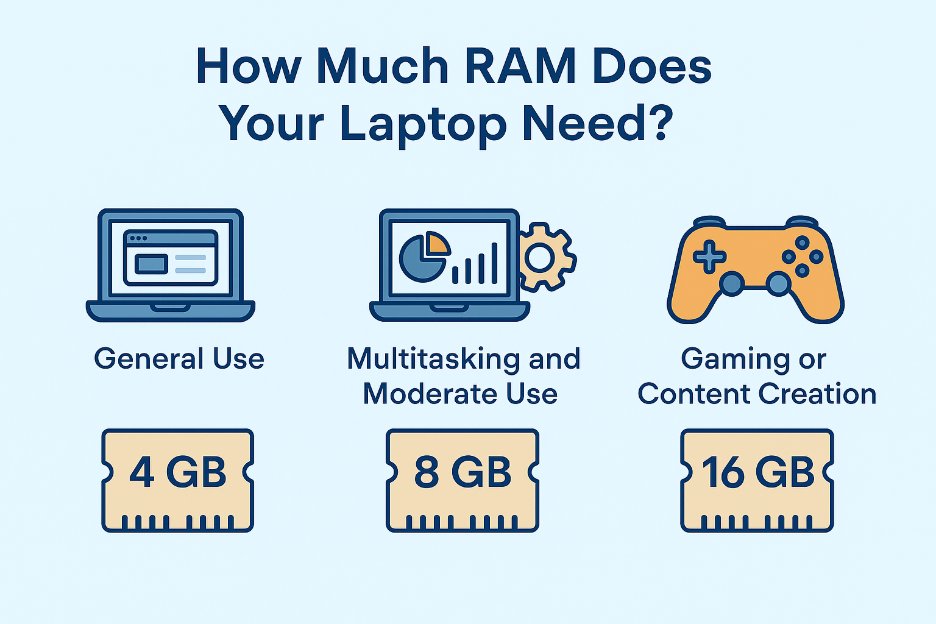
How Much RAM Does Your Laptop Need?
Before performing a laptop RAM upgrade, it’s important to assess how much memory your laptop requires. A typical laptop might come with 4GB or 8GB of RAM, but depending on your needs, you may require more.
- General Use: If you mainly use your laptop for web browsing, office applications, and watching videos, 8GB of RAM should be more than enough.
- Multitasking and Moderate Use: For users who run multiple programs simultaneously, such as having several browser tabs open, email, and office tools running, 8GB to 16GB of RAM will improve overall performance.
- Gaming or Content Creation: If you’re into gaming, video editing, or graphic design, you’ll need 16GB to 32GB of RAM for smooth performance. RAM becomes increasingly important for programs like Adobe Premiere Pro, Photoshop, or high-end games that demand significant memory.
The amount of RAM you need is closely tied to the type of work you do.
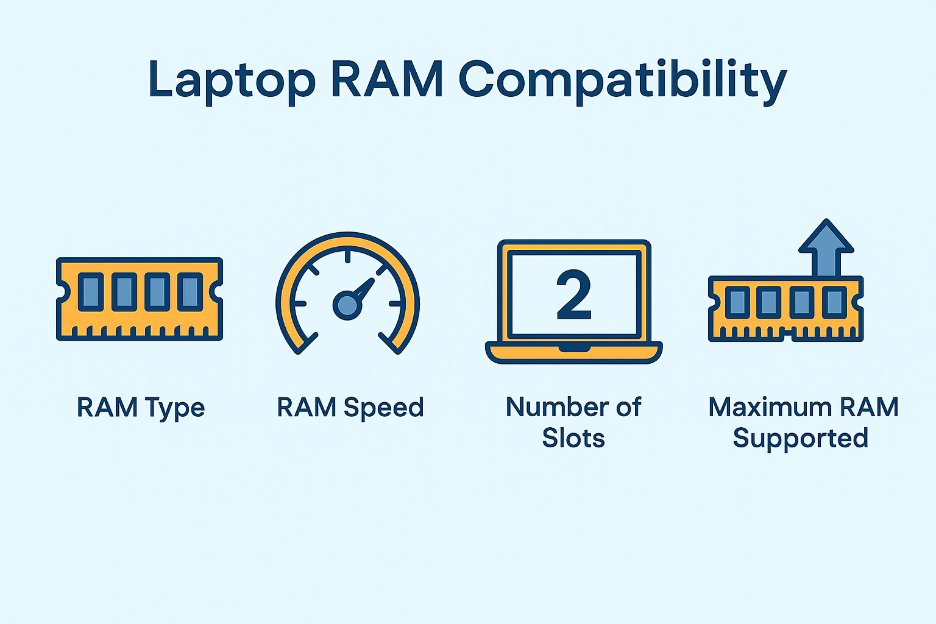
Laptop RAM Compatibility
RAM isn’t a one-size-fits-all component; each laptop has specific requirements that the upgrade must meet to work. These requirements can include:
- RAM Type: There are different types of laptop RAM, such as DDR3, DDR4, and DDR5. DDR5 is the newer and faster type, so if your laptop supports it, it’s a good idea to go for DDR5 RAM.
- RAM Speed: RAM comes in different speeds (measured in MHz). Therefore, before you buy RAM, look at your laptop’s specifications to ensure it meets your system’s requirements.
- Number of Slots: Laptops generally have one or two RAM slots. If you’re planning to add more RAM, make sure your laptop has an available slot. If not, you’ll need to replace the existing RAM with higher capacity sticks.
- Maximum RAM Supported: Every laptop has a limit on how much RAM it can handle. For example, some laptops might only support 16GB of RAM, while others can go up to 64GB. Therefore, check your laptop’s documentation to see the maximum RAM supported.
Is Your Laptop Upgradeable?
Not all laptops are compatible with a laptop RAM upgrade. Some modern ultrabooks and thin laptops come with soldered RAM, meaning the memory is permanently attached to the motherboard and cannot be upgraded. In such cases, it’s important to evaluate other ways, such as upgrading your storage to a solid-state drive (SSD) or optimizing software settings.
Find out if your laptop supports a RAM upgrade before you buy new modules. You can usually find this information online.
Checking System Specifications
When upgrading your laptop RAM, it’s important to verify your system specifications to confirm compatibility. You can use tools like Task Manager (Windows) or Activity Monitor (Mac) to check your current RAM usage and see if an upgrade is necessary.
Additionally, checking system information will help you determine the specifications of your existing RAM (such as the type, speed, and size). This will help you buy RAM that matches the existing configuration. Ideally, if you’re adding RAM, both sticks should match in terms of size and speed for optimal performance.
Installation Process
Upgrading your laptop RAM is generally an easy process, but it requires some careful handling. If you’re comfortable working with hardware, you can perform the upgrade yourself. Most laptops come with a panel that provides access to the memory slots. Here’s a simplified process to follow:
- Power Off the Laptop: Always turn off the laptop and disconnect it from any power source before starting.
- Open the Panel: Remove the screws and access the memory slots. Some laptops may require you to remove the battery to access the RAM.
- Install the New RAM: Carefully insert the new RAM module into the empty slot until it clicks into place. If you’re replacing old RAM, gently remove the existing module and insert the new one.
- Close the Panel and Test: Once the upgrade is complete, close the panel, reconnect the power, and turn on your laptop. Check the system information to verify that the new RAM is recognized.
If you’re not comfortable performing the laptop RAM upgrade yourself, you can always take your laptop to a professional technician for installation.
Cost vs. Performance
The cost of a laptop RAM upgrade can vary based on the size, brand, and specifications of the RAM module you choose. In many cases, upgrading RAM can offer significant improvements in multitasking and performance. However, if your laptop has other limitations, such as an outdated processor or slow storage, upgrading the RAM might not provide the same level of performance boost.
Test the Upgrade
Once you’ve installed your new RAM, it’s important to test your laptop to see if the upgrade delivers the desired improvements. You can run benchmark tests or simply use your laptop for daily tasks to see if it performs faster and more efficiently.
Keep an eye on your laptop’s performance by checking the system performance during intensive tasks like gaming or video editing. If the laptop runs smoother, with fewer lags or crashes, you’ve made a successful upgrade!
Why Choose Laptop World for Your Laptop RAM Upgrade?
- Expert Advice: Not sure how much RAM you need? Our knowledgeable team can help you choose the right amount and type based on your usage.
- High-Quality RAM: We offer only top-tier RAM that’s compatible with a wide range of laptops, so you get the best value and performance.
- Quick and Hassle-Free Service: Our expert technicians handle everything from selecting the right RAM to installing it, so you can enjoy a faster laptop without any stress.
Visit Laptop World today and let us help you with your laptop RAM upgrade.
FAQs
1. Can I perform a laptop RAM upgrade myself?
Yes, you can upgrade your laptop’s RAM yourself, but it requires some technical knowledge. Make sure to follow the instructions carefully and check your laptop’s specifications to select the right laptop RAM upgrade.
2. How do I know if my laptop supports a RAM upgrade?
To find out if your laptop supports a RAM upgrade, check the laptop’s manual or visit the manufacturer’s website. Most laptops have a maximum RAM limit and a specified RAM type (like DDR4 or DDR5) that can be upgraded.
3. Will a laptop RAM upgrade make my laptop faster?
Yes, a laptop RAM upgrade can significantly improve your laptop’s speed, especially when running multiple applications or performing tasks like gaming, editing videos, or working with large files.
4. Will upgrading the RAM void my laptop’s warranty?
Upgrading your laptop RAM may or may not void your warranty, depending on the manufacturer’s policies. Always check with your laptop manufacturer to understand if a laptop RAM upgrade will affect your warranty.