
How to Verify If Your Apple Warranty and AppleCare+ Are Fully Active in India
Buying a MacBook is a big investment, and many owners postpone checking its warranty status until a problem occurs. Finding out then that your warranty is gone, or that AppleCare+ never actually stuck to your device, can be really frustrating. The good news is that you can verify your Mac’s coverage yourself using Apple’s official…
Buying a MacBook is a big investment, and many owners postpone checking its warranty status until a problem occurs. Finding out then that your warranty is gone, or that AppleCare+ never actually stuck to your device, can be really frustrating.
The good news is that you can verify your Mac’s coverage yourself using Apple’s official tools. If you recently purchased a MacBook from an Apple laptop authorised dealer in Bangalore, it is also worth checking the coverage immediately rather than relying only on the seller’s assurance.
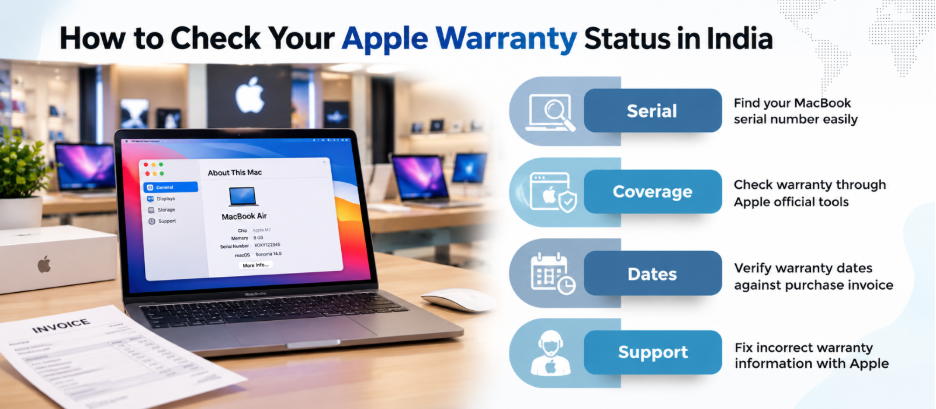
Here’s how to check exactly what coverage your Mac currently has.
1. Start With Apple’s Online Coverage Checker
The quickest way to check warranty information is through Apple’s official coverage service.
You’ll generally need your Mac’s serial number. On your Mac, go to:
Apple menu → About This Mac
Depending on your macOS version, the serial number will be displayed in the device information.
You can then use Apple’s official coverage-checking service to view information associated with the device. Look carefully at:
- Whether the device is covered
- The type of Apple coverage shown
- The coverage expiration date
- Whether AppleCare is listed
- Whether additional coverage options are available
Take a screenshot of the result. It gives you a useful reference if the coverage information later appears inconsistent with your purchase documents.

2. Check AppleCare & Warranty Directly on Your Mac
You don’t necessarily have to use a browser.
Apple currently provides an AppleCare & Warranty section on supported Macs. Apple says users can access it through the device’s settings and view AppleCare information associated with their Apple Account.
On your Mac, look for:
Apple menu → System Settings → General → AppleCare & Warranty
If your AppleCare+ isn’t showing up even though you bought it, don’t jump to conclusions. There may be account-linking or registration issues that require further checking.
3. Don’t Confuse the Standard Warranty With AppleCare+
This is one of the most important distinctions for Mac owners.
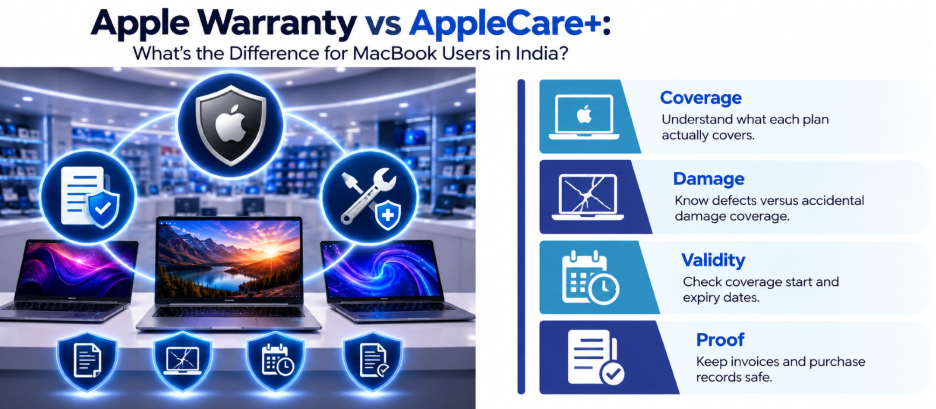
Apple’s standard Limited Warranty generally covers the Mac against manufacturing defects for a specified period. It isn’t the same thing as AppleCare+.
Apple states that its Limited Warranty covers the device against manufacturing issues for one year from the purchase date, while accidental damage isn’t covered under the standard warranty.
AppleCare+ is a separate paid coverage plan that can provide additional service and support benefits, subject to its specific terms.
4. Check Whether Your AppleCare+ Plan Is Actually Linked
Suppose you purchased AppleCare+ at the same time as your MacBook. You should still verify that the plan appears correctly.
Apple states that AppleCare coverage is typically registered automatically after purchase. If you cannot find the plan, Apple recommends checking AppleCare & Warranty on the device or checking coverage online.
If the plan isn’t appearing, have these documents ready:
- Mac serial number
- Original Mac purchase invoice
- AppleCare purchase receipt
- AppleCare agreement number, if available
- Apple Account details associated with the device
Apple specifically recommends having the AppleCare agreement number, device serial number, and original receipts available when contacting support about a missing plan.
5. Check Your Apple Account for Recurring AppleCare
Recurring AppleCare plans require another check.
According to Apple, it’s best to link your ongoing AppleCare subscription to your Apple Account. You can check subscription information through your Apple Account settings.
This matters because a payment problem can affect recurring coverage.
For example, if Apple cannot charge the payment method associated with the recurring plan, the coverage may eventually be cancelled.
So don’t rely solely on an old AppleCare purchase email. Check the current status.
6. Verify the Purchase Date if Something Looks Wrong
Sometimes the coverage information displayed by Apple doesn’t match what you expected from the day you purchased the Mac.
For example, you may notice that the warranty expiration date appears earlier than expected.
Before assuming there is a problem, compare Apple’s coverage information with your original invoice.
See if the date Apple has on file lines up with the date printed on your receipt. If the dates don’t correspond, contact Apple Support with the original proof of purchase.
This is why it’s totally worth buying your MacBook from an Apple laptop authorised dealer in Bangalore and keeping your invoice safe.
7. What If AppleCare+ Doesn’t Appear?
Don’t purchase another plan immediately.
First:
- Check AppleCare & Warranty on the Mac.
- Check Apple’s online coverage information.
- Confirm you’re signed into the correct Apple Account.
- Review your AppleCare purchase receipt.
- Compare the Mac’s serial number with the receipt.
- Contact Apple Support if the information still doesn’t match.
Apple specifically advises contacting Apple Support if an AppleCare plan cannot be found or linked to the device.
8. What “Fully Active” Should Mean
Before assuming your Mac is completely covered, check three separate things:
- Standard warranty: Is the manufacturer’s Limited Warranty still active?
- AppleCare+: Does your AppleCare plan actually appear against the correct device?
- Dates: Are the start and expiration dates consistent with your purchase records?
These three checks are more useful than simply seeing a generic “coverage available” message.
Also remember that having active coverage doesn’t mean every type of damage is automatically free. Coverage depends on the specific AppleCare plan and its terms.
Final Takeaway
Checking your Apple warranty and AppleCare+ status takes only a few minutes, but it can prevent an unpleasant surprise when you need support.
If you have recently purchased a MacBook from an Apple laptop authorised dealer in Bangalore, making this verification part of your initial setup is a simple step that can save considerable confusion later.
Visit Laptop World for expert guidance, authentic products, and reliable after-sales support.
FAQs
1. How can I check my MacBook warranty in India?
You can check your Mac’s coverage online using Apple’s coverage service or through the AppleCare & Warranty section available on supported devices.
2. How do I check if AppleCare+ is active?
Open System Settings → General → AppleCare & Warranty on your Mac and review the coverage information. You can also check coverage online through Apple.
3. Can a warranty cover accidental damage?
Apple’s standard Limited Warranty does not cover accidental damage. Additional coverage depends on the AppleCare plan and its applicable terms.
4. Why should I keep my MacBook invoice?
The original sales receipt can be useful if Apple needs proof of purchase or if there is a discrepancy involving warranty or AppleCare information.
5. Can an AppleCare plan disappear because of a payment problem?
For recurring AppleCare plans, Apple states that failure to charge the payment method can result in the coverage being cancelled.