Laptop Freezing After RAM Upgrade: Why It Happens and How to Fix It
Laptop freezing after RAM upgrade is one of the most common complaints users face when trying to breathe new life into an older machine. You install a shiny new stick of RAM, expect snappier performance, and instead end up staring at a frozen screen or random reboots. Fortunately, almost every case has an apparent technical…
Laptop freezing after RAM upgrade is one of the most common complaints users face when trying to breathe new life into an older machine. You install a shiny new stick of RAM, expect snappier performance, and instead end up staring at a frozen screen or random reboots. Fortunately, almost every case has an apparent technical reason and a straightforward fix.
In this guide, we’ll cover the real causes and proven solutions based on hardware compatibility rules, BIOS behavior, and electrical realities.
Why Your Laptop Freezes After a RAM Upgrade
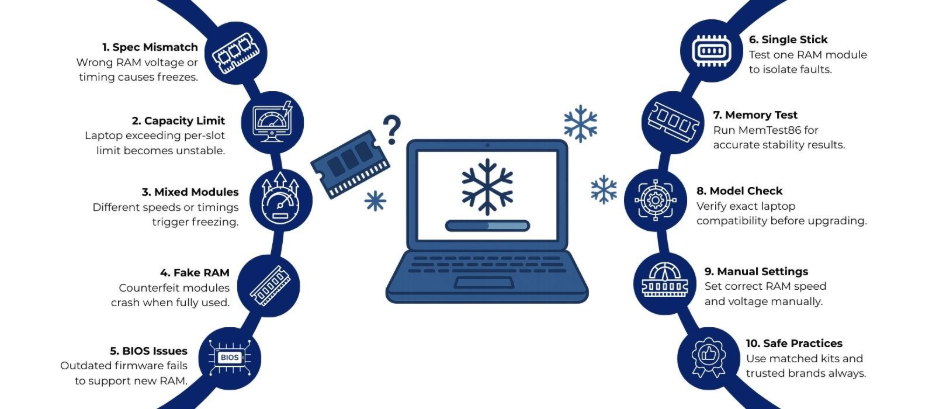
Most freezing issues after a laptop RAM upgrade stem from five core problems:
1. Incompatible RAM specifications
Even if the new module physically fits, differences in voltage, timing, rank, or chip density can make the memory controller unstable. For example, mixing 1.35 V low-voltage DDR3L with standard 1.5 V DDR3 often causes immediate freezes on Intel 2nd–4th gen platforms.
2. Exceeded maximum supported capacity per slot
Many laptops have hard limits that are lower than what the chipset theoretically allows. A classic example is the Lenovo ThinkPad T440p: the Intel QM87 chipset supports 32 GB, but Lenovo only validates 16 GB (2 × 8 GB). Installing 2 × 16 GB frequently results in random freezes even though the sticks are otherwise compatible.
3. Mixing different RAM modules (speed, timing, manufacturer)
When two modules have different primary timings (e.g., CL15 vs CL22) or operate at different speeds, the memory controller forces both to the slowest common settings. If the slower module cannot run stably at the faster module’s voltage or secondary timings, corruption and freezes occur.
4. Faulty or counterfeit RAM module
A significant percentage of “16 GB DDR4 3200 MHz” sticks sold on some marketplaces are actually relabeled 4 GB or 8 GB chips with spoofed SPD data. The system reads 16 GB, allocates memory beyond what physically exists, and crashes the moment that address space is used.
5. Outdated or buggy BIOS/UEFI firmware
Older BIOS versions sometimes lack proper support for higher-density chips or newer JEDEC speeds. A BIOS update has resolved freezing issues on countless models after users upgraded to 32 GB or 64 GB kits.
Step-by-Step Troubleshooting for Laptop Freezing After RAM Upgrade
Follow this exact order to isolate the problem quickly.
Step 1: Test with One Stick Only
Remove all old RAM and boot with just the new module in the primary slot (usually the slot closest to the CPU).
- If it boots and stays stable → the issue is mixing modules.
- If it still freezes → the new module or slot is problematic.
Step 2: Run MemTest86 (Properly)
Download the latest MemTest86 (free version) and create a bootable USB. Let it complete at least four full passes (can take 6–20 hours depending on capacity). Zero errors do not 100 % prove the RAM is good under Windows, but any error almost always confirms defective or incompatible RAM.
Step 3: Verify Exact Model Compatibility
Check the official service manual for your exact laptop model (not just the series). Manufacturers sometimes use different memory controllers even within the same model number, depending on production batch.
Step 4: Check BIOS Version
Download the latest BIOS from the laptop manufacturer’s support page (never third-party sites). Many freezing issues on 12th/13th/14th-gen Intel laptops with 64 GB DDR5 were fixed by 2023–2024 BIOS updates that added new memory reference code.
Step 5: Force Correct Speed and Voltage Manually (Advanced)
If the system boots but freezes under load:
- Enter BIOS → look for XMP/DOCP/A-XMP or manual DRAM configuration.
- Set frequency, voltage, and primary timings exactly to the values printed on the RAM sticker (not the marketed “up-to” speed).
- Example: A 3200 MHz CL22 kit should be set to 3200 MHz, 1.35 V, 22-22-22-52 instead of letting the board default to 2133 MHz or JEDEC 2666 MHz.
Best Practices to Avoid Freezing After a Laptop RAM Upgrade
- Buy matched kits (dual-channel or quad-channel packs) instead of individual sticks.
- Stick to name brands with lifetime warranties.
- Always check the Qualified Vendor List (QVL) if the manufacturer publishes one (common on gaming laptops).
- Update BIOS before installing new RAM, not after problems appear.
- Avoid “value” or unbranded modules marketed at suspiciously low prices.
Final Thoughts
Laptop freezing after RAM upgrade is almost never random bad luck. In 95 % of cases, it traces back to compatibility limits, mismatched modules, or outdated firmware. By testing modules individually, verifying exact model support, and running proper memory diagnostics, you can pinpoint and solve the issue in under an hour in most scenarios.
However, if you’re unsure about performing the upgrade on your own or run into any difficulties, don’t hesitate to visit Laptop World today. Our expert technicians are here to assist you with seamless upgrades!
About Laptop World
With 20 years of experience in Retail, Laptop World is Bangalore’s oldest multi-brand laptop store, offering a personalized customer experience. We are unbiased towards any particular brand, dealing with top names like HP, Lenovo, Dell, Asus, and Apple. Our commitment to excellent customer service sets us apart.
For businesses, our corporate division, Nurture IT, provides comprehensive IT solutions tailored for startups in Indiranagar, ensuring all your IT needs are met in one place. From laptops to networking, servers, Information Security, End User Protection – we have you covered.
FAQs
1. Why does my laptop freeze after installing new RAM?
Laptop freezing often happens due to incompatible RAM specifications, exceeding maximum supported capacity, mixing modules with different speeds or timings, faulty modules, or outdated BIOS/UEFI firmware.
2. Can incompatible RAM physically fit but still cause freezing?
Yes. Even if the module fits the slot, differences in voltage, timing, or chip density can make the memory controller unstable and trigger freezes.
3. Does exceeding the RAM limit per slot cause issues?
Yes. Installing more RAM than the manufacturer validates for a laptop can lead to random freezes, even if the modules themselves are compatible.
4. Is mixing different RAM brands or speeds a problem?
Mixing RAM modules with different speeds, timings, or manufacturers can force the system to run at slower settings, causing instability or crashes under load.