Why Regular Laptop Cleaning Can Improve Performance and Lifespan
Most people clean their phone screens daily, but never think about cleaning a laptop until it starts sounding like a tiny aircraft taking off. That’s a problem, because what’s happening inside the chassis matters far more than what’s visible on the outside. Dust quietly builds up on fans, vents, and circuit boards, and over months, it changes how your machine runs. This is where simple laptop cleaning…
Most people clean their phone screens daily, but never think about cleaning a laptop until it starts sounding like a tiny aircraft taking off. That’s a problem, because what’s happening inside the chassis matters far more than what’s visible on the outside. Dust quietly builds up on fans, vents, and circuit boards, and over months, it changes how your machine runs.
This is where simple laptop cleaning tips make a real difference. A laptop is not just a screen and a keyboard; it’s a sealed system of moving fans, heat sinks, and connectors that all need clear airflow to work properly.
How Dust Actually Affects Your Laptop
A laptop’s cooling system pulls in air, passes it across a heat sink, and pushes warm air back out through a vent, usually near the hinge or the sides. It’s a simple loop, but it depends entirely on unobstructed airflow.
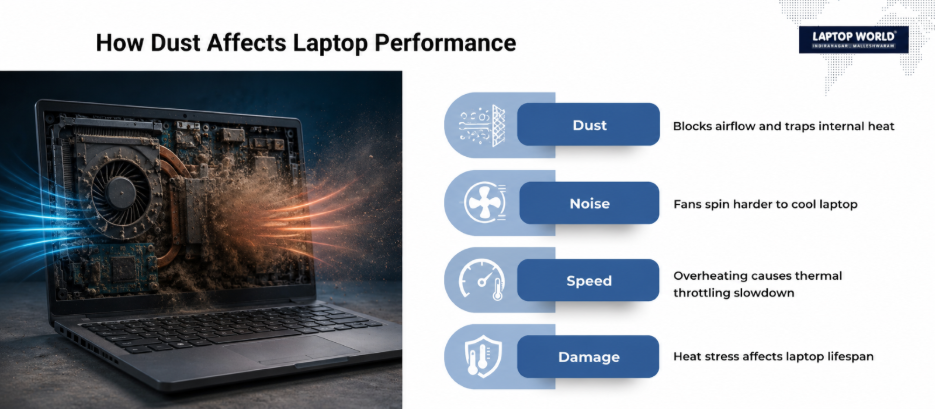
Over time, dust in laptop fan blades and intake grills reduces how much air can move through the system. Dust is also an insulator, so when it settles directly on the heat sink fins, it acts like a thermal blanket. The fan then has to spin faster and longer to compensate, which is often why a dusty laptop sounds noticeably louder than a clean one.
It is basic thermodynamics. Manufacturers design cooling systems around expected airflow rates, and any blockage forces the system to work outside its intended range.
Connecting Dust to Overheating
When airflow drops, internal temperatures rise. Most modern processors include thermal throttling, a built-in protection method that lowers CPU and GPU speeds automatically once temperatures cross a set limit. This is a smart safety feature, but it also means your laptop becomes noticeably slower during throttling, even though nothing else has changed.
If you’ve noticed your laptop randomly slowing down during video calls, gaming sessions, or even basic browsing, dust buildup could easily be the underlying cause. In more advanced situations, repeated overheating can degrade the thermal paste between the CPU and heat sink, lower battery lifespan due to consistent heat exposure, and in rare extreme cases, cause warping in plastic chassis components near the vents. None of this happens overnight, but small thermal stress, repeated daily, adds up.
If you’re already dealing with consistent overheating, a genuine overheating laptop fix usually starts with physical cleaning before jumping to software tweaks or hardware replacements.

External Cleaning vs Internal Cleaning: They’re Not the Same Thing
Wiping the keyboard and screen with a microfiber cloth is good hygiene, but it does nothing for the heat and dust sitting inside the chassis.
Internal laptop cleaning typically involves opening the back panel (only on models designed for user access), using compressed air to dislodge dust from fan blades, gently cleaning the heat sink fins without bending them, and checking thermal paste condition on older laptops, generally those three years or older.
This is also exactly where DIY attempts can go wrong. Touching a fan motor with bare hands, using a vacuum cleaner directly on internal components (which can generate static electricity), or removing screws without knowing the laptop’s specific disassembly process can cause more harm than the dust itself. If your laptop’s design doesn’t allow easy back-panel access, or if you’re not confident opening it safely, professional help is the smarter route.
Why Professional Cleaning Sometimes Makes More Sense
Some laptops, especially ultrabooks and certain MacBook models, aren’t built for easy internal access. In these cases, trying to force a panel open risks snapping clips or damaging ribbon cables.
For users, when basic cleaning hasn’t fixed overheating issues, professional laptop repair Bangalore services can safely open the unit, clean it thoroughly, and check for any related issues like worn-out thermal paste or a failing fan motor, often during the same visit.
A Simple, Realistic Cleaning Routine
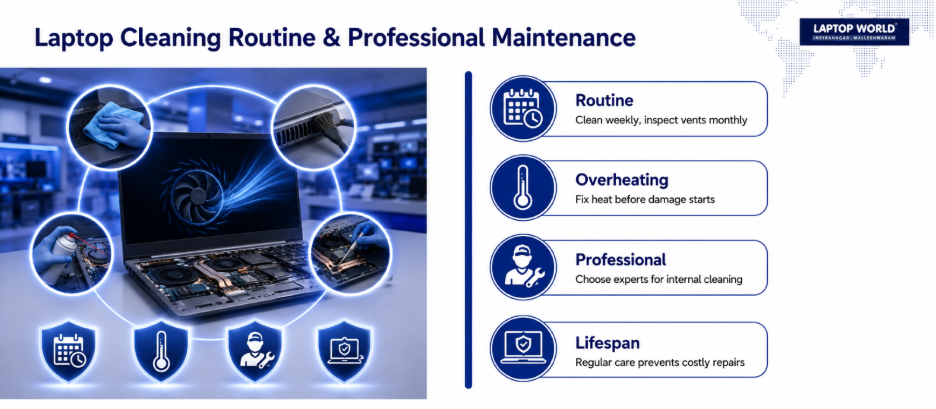
You don’t need an elaborate weekly schedule. Following a few consistent laptop cleaning tips is enough for most users:
- Wipe the screen, keyboard, and exterior every week with a dry microfiber cloth.
- Use a soft brush or compressed air on the vents every month, especially if you work in a dusty environment or use the laptop on a bed or carpet often.
- Get a proper internal cleaning every six to twelve months, sooner if you notice fan noise, warm air output, or sudden slowdowns.
- Avoid eating near your laptop, since food particles cause far more keyboard damage than people expect.
These small habits genuinely extend the life of internal components.
The Bigger Picture
Cleaning directly affects processor speed, fan lifespan, and how long the entire system lasts. A few minutes of regular care can delay expensive repairs by years.
If you’re already following good laptop cleaning tips but still notice consistent heat or noise issues, it might be worth pairing cleaning with a broader maintenance routine. Our guide on essential laptop maintenance tips for prolonging performance is a solid next read for building that habit properly.
FAQs
1. How often should I clean my laptop internally?
Most laptops benefit from an internal cleaning every six to twelve months, though heavy users or those in dusty environments may need it more frequently.
2. Can dust actually damage my laptop, or does it just look bad?
Dust does real damage. It blocks airflow, raises internal temperatures, and forces the fan to overwork, which can shorten the lifespan of both the fan motor and the processor.
3. What’s the safest way to clean a laptop fan at home?
Compressed air, used in short bursts while holding the fan blades steady, is generally the safest DIY method. Avoid vacuum cleaners directly on internal parts.
4. Is it normal for a laptop to get warm during use?
Mild warmth is normal, but if it becomes hot to the touch or the fan runs constantly at high speed, dust buildup or a cooling issue is likely.
5. Can overheating reduce my laptop’s battery life?
Yes. Repeated heat exposure speeds up battery degradation, often more than software running in the background.