
Laptop Shop Near Me: How to Compare Two Laptops in a Store in 15 Minutes?
Walk into any laptop shop on a Saturday afternoon, and you will find the same scene. Two laptops sit side by side on a glass counter. A salesperson is already talking. Somewhere in the next ten minutes, you are expected to decide which one goes home with you. Most buyers freeze at this point. They either trust…
Walk into any laptop shop on a Saturday afternoon, and you will find the same scene. Two laptops sit side by side on a glass counter. A salesperson is already talking. Somewhere in the next ten minutes, you are expected to decide which one goes home with you.
Most buyers freeze at this point. They either trust the salesperson completely or walk out to “think about it,” which usually means they never come back. Neither approach helps you. What actually helps is a short, structured comparison you can run in fifteen minutes flat, using only what is sitting in front of you on the counter.
Why Fifteen Minutes Is Enough, If You Know What to Check?
You do not need to be a technician to compare two laptops well. You need a short checklist and the discipline to run through it in order. Most staff will lead with price or a discount offer. Save that conversation for last. Any decent laptop shop should be comfortable letting you run this exact comparison without pushing back.
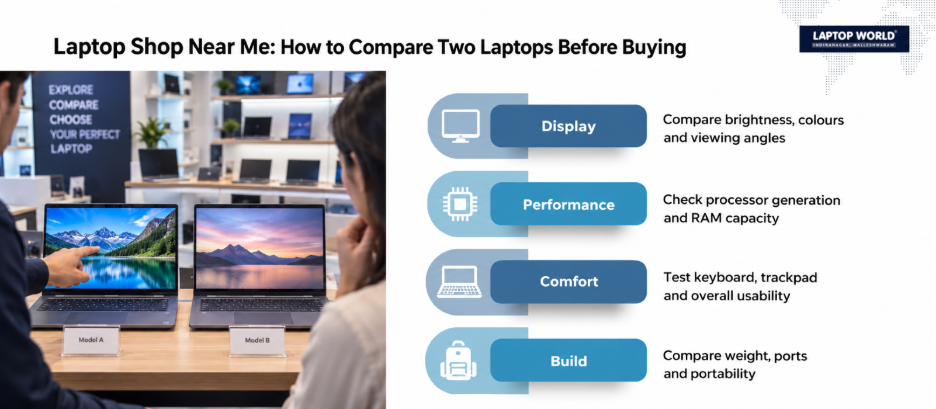
Step 1: Compare the Display Side by Side First
Open the same webpage or photo on both laptops. Look at brightness, colour, and viewing angle from a slight side position, not straight on. A screen that looks fine head-on can wash out badly the moment you tilt it, which matters if you will ever share the screen with someone next to you.
Panel type matters here more than most buyers realise. An IPS panel generally holds colour and angle better than a basic TN panel, while OLED panels offer deeper blacks and richer contrast at a higher price. If you want the technical differences explained properly, this laptop display comparison breaks down how LCD, IPS, and OLED panels actually perform for everyday use.
Step 2: Check the Processor and RAM Labels, Not Just the Price Tag
Two laptops can look nearly identical and still perform very differently once you look past the sticker price. Check the processor generation, not just whether it says i5 or i7. A newer i5 can outperform an older i7 in real tasks. Also check RAM: 8GB is workable for browsing and documents, but 16GB is the safer choice if you multitask or plan to keep the laptop for several years.
If the processor naming on the spec sheet feels confusing, this breakdown of i5 vs i7 vs Ryzen is a useful reference before you commit to either machine.
Step 3: Test the Keyboard and Trackpad With the Same Task
Type the same sentence on both laptops. Notice key travel, spacing, and whether the keyboard flexes under your fingers. Then use the trackpad to open an app and scroll through it. A cramped keyboard or a jumpy trackpad is something you will notice every single day, long after the initial excitement of a new purchase fades.
Step 4: Look at Ports, Weight, and Build in Your Hands
Pick up both laptops, one at a time. Weight differences that feel small on a spec sheet feel very different after carrying a laptop in a bag for a full day. Most demo units at a laptop shop near me are set out specifically so you can do this comparison. Check the ports too: USB-C, HDMI, and a headphone jack cover most needs, but if you rely on an SD card reader or an Ethernet port for work, confirm it is actually there before you decide.

Step 5: Ask About Warranty and After-Sales Before You Ask About Discount
This step gets skipped constantly, and it is the one that costs buyers the most later. Ask what the manufacturer warranty actually covers, whether accidental damage is included, and how the store handles repairs after the sale. Not every laptop shop offers the same after-sales support, so this question separates a genuinely good deal from a cheap one.
A slightly cheaper laptop with a weak warranty can end up costing more than the pricier option once something goes wrong. This laptop warranty guide explains what is typically covered and what usually is not, so you know exactly what to ask for at the counter.
The One Question That Cuts Through Sales Pitches
Once you have compared displays, specs, keyboards, ports, and warranty, ask one direct question: “Between these two, which would you personally buy for this budget?” A confident, specific answer tells you something. A vague answer that avoids picking one tells you something too. This question works especially well at a laptop shop with experienced staff, since it forces an honest opinion instead of a rehearsed pitch.

Why the Right Laptop Shop Near Me Still Beats Buying Online for This?
Online listings show you specifications. They cannot show you how a keyboard feels, how a screen looks at an angle, or how a salesperson answers a direct question about which laptop they would actually choose.
Similarly, not every store offers the same depth of comparison, either. Therefore, reading about the differences between single-brand and multi-brand laptop stores in Bangalore can help you pick a store that stocks enough options to make a genuine side-by-side comparison possible in the first place.
The Bottom Line
Fifteen minutes is not a compromise. It is enough time to compare what actually matters. Walk into your next laptop shop with this checklist, and you will leave with a decision you made, not one that was made for you.
Or just head over to the Laptop World store in Malleshwaram to test machines side by side, get real advice, and pick your perfect laptop!
FAQs
- What is the fastest way to compare two laptops in a store?
Follow a fixed order: display, processor and RAM, keyboard and trackpad, ports and build, then warranty. Spending roughly three minutes on each keeps the whole comparison inside fifteen minutes without missing anything important.
- Do I need to check specs online before visiting a laptop shop near me?
It helps but is not required. Knowing the processor generation and RAM options in advance saves time at the counter, though the in-store checks, like screen angle and keyboard feel, cannot be done from a spec sheet alone.
- Is a newer i5 processor better than an older i7?
Often, yes. Processor generations improve efficiency and performance with each release, so a recent i5 can outperform an i7 from a few generations back. Always check the generation number, not just the i5 or i7 label.
- How much RAM do I actually need in 2026?
8GB covers basic browsing, documents, and video calls. 16GB is the safer choice if you multitask heavily, run multiple browser tabs, or plan to keep the laptop for several years without upgrading.
- Does screen size affect how you should compare two laptops?
It changes portability and viewing comfort, but the comparison steps stay the same. Check brightness, colour, and viewing angle regardless of whether you are comparing two 14-inch laptops or a 14-inch against a 15.6-inch model.