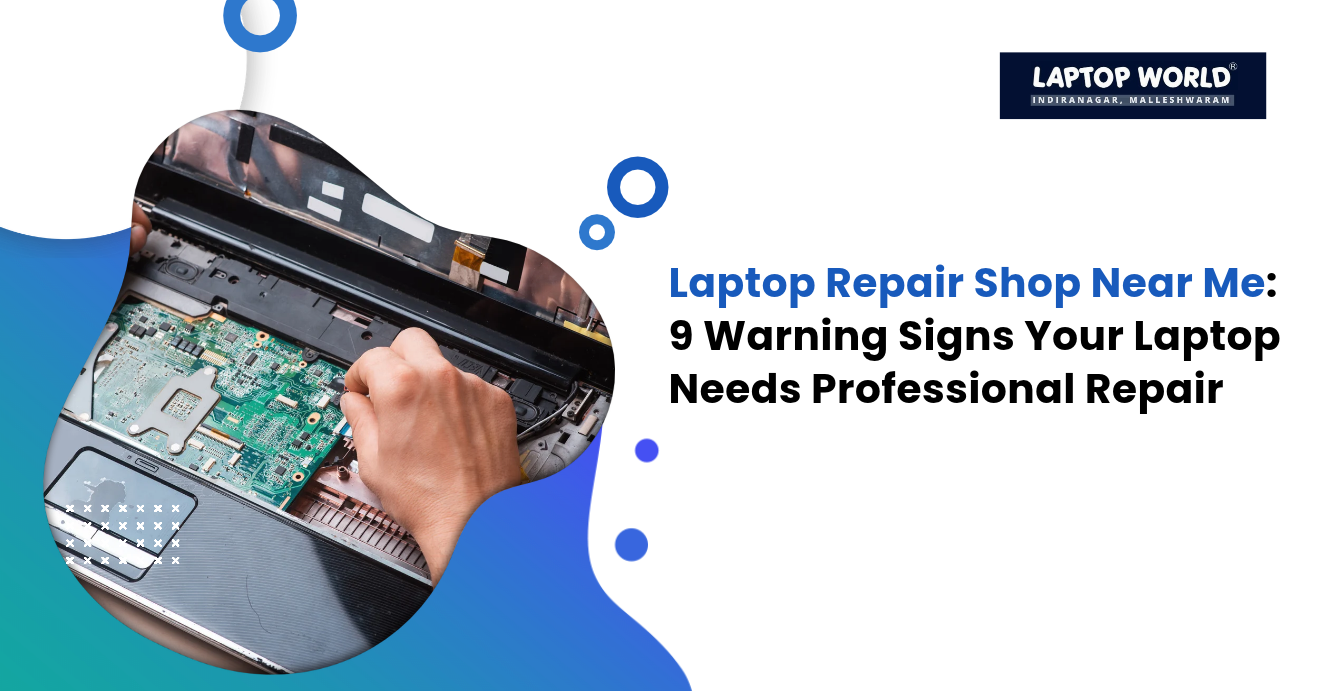
Laptop Repair Shop Near Me: 9 Warning Signs Your Laptop Needs Professional Repair
A laptop rarely stops working without warning. It might slow down, overheat during simple tasks, lose battery quickly, or develop a screen problem that comes and goes. These symptoms are easy to ignore when you have deadlines to meet. However, delaying the right repair can sometimes turn a manageable fault into a more expensive problem. …
A laptop rarely stops working without warning. It might slow down, overheat during simple tasks, lose battery quickly, or develop a screen problem that comes and goes. These symptoms are easy to ignore when you have deadlines to meet. However, delaying the right repair can sometimes turn a manageable fault into a more expensive problem.
Knowing when to search for a laptop repair shop near me can help you protect your device and budget. Here are ten warning signs worth taking seriously.
1. Your Laptop Overheats Frequently
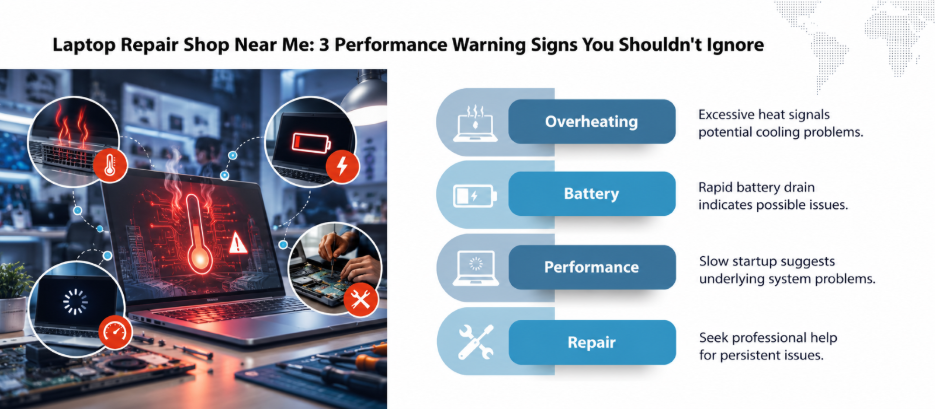
A laptop becoming warm during gaming or video editing is normal. However, excessive heat during basic browsing, repeated thermal shutdowns, or fans running loudly when you’re doing very little may indicate blocked vents, dust buildup, a cooling-system fault, or unusually high processor activity.
What you can do: Place the laptop on a hard, flat surface and check that its air vents are unobstructed. If overheating continues, arrange a professional inspection. Repeated overheating can affect performance and may damage components.
2. The Battery Drains Much Faster Than Before
Does your laptop lose charge even when you’re performing simple tasks? Does it shut down unexpectedly despite showing remaining battery power?
Battery ageing is one possible explanation. However, background applications, high screen brightness, and power-management settings can also increase consumption.
Therefore, check your operating system’s battery-health report, if available. If the battery is swollen, stop using and charging the laptop, and seek professional assistance. Do not press, puncture, or attempt to remove a swollen battery yourself.
3. Your Laptop Takes Too Long to Start
A slow startup does not automatically mean your laptop needs repair. Too many startup applications, insufficient storage space, malware, and pending updates can all contribute.
Therefore, start by reviewing startup applications and checking available storage. If the laptop remains unusually slow, freezes regularly, or takes a long time to open files, a technician can investigate the storage drive, memory, operating system, and other possible causes.
Before making major changes, back up important files.

4. The Screen Flickers or Shows Lines
Flickering, coloured lines, black patches, and intermittent displays can point to a damaged screen, a loose internal display connection, graphics-driver problems, or a graphics-hardware fault.
To find out, connect an external monitor if you can do so. If the external display works normally, the built-in screen or its connection may be the issue, although this test cannot confirm the exact cause.
Avoid pressing the screen or repeatedly opening and closing the lid to make the picture return. A technician can identify whether the problem requires a display replacement or a different repair.
5. The Laptop Shuts Down Without Warning
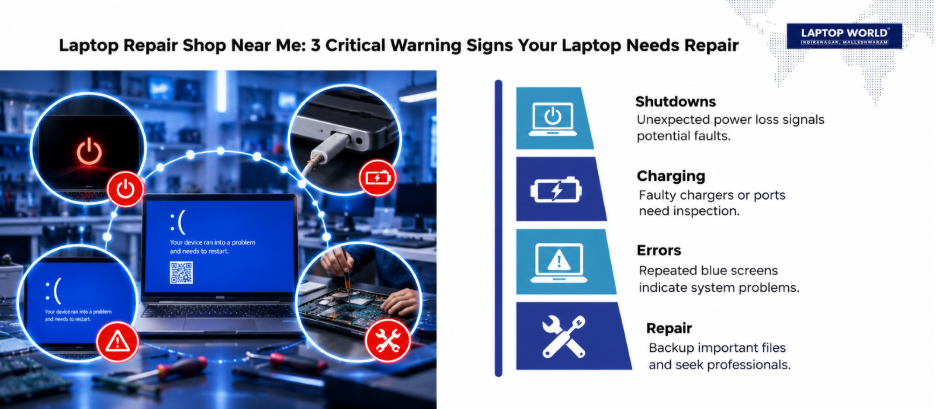
Unexpected shutdowns can result from overheating, battery problems, power-adapter faults, operating-system errors, or failing hardware.
Notice when the shutdown occurs. Does it happen while charging, during demanding tasks, or even when the laptop is idle? This information can help narrow down the cause.
If shutdowns repeat, save your work frequently and back up your data. Seek professional diagnosis instead of repeatedly forcing the laptop to restart.
6. The Keyboard or Touchpad Stops Responding
A few unresponsive keys might indicate debris, liquid damage, a keyboard fault, or a software issue. But a touchpad that stops working could be disabled in settings or affected by a driver problem.
Restart the laptop and check the touchpad settings. If only certain keys fail, or the keyboard behaves erratically after a spill, professional inspection is advisable.
Important: If liquid enters the laptop, power it off, disconnect the charger if safe, and do not turn it back on to test whether it works. Liquid damage can worsen while electrical power is present.
7. You Hear Clicking, Grinding, or Unusual Fan Noises
A fan may become louder when the processor is working hard. That alone is not necessarily a fault.
Repeated grinding, scraping, or new mechanical clicking sounds deserve closer attention. A mechanical hard drive may click when failing, while a damaged fan can produce scraping or rattling noises. Not every sound indicates imminent failure, but unusual mechanical noises should not be ignored.
If you suspect a failing drive, prioritise data recovery or backup where possible. Avoid repeatedly restarting the device if the drive appears to be failing.
8. The Laptop Won’t Charge Properly
If the battery percentage doesn’t increase, the charging light flickers, or the laptop works only at a particular cable angle, possible causes include a faulty charger, damaged charging port, worn cable, or battery problem.
Therefore, check for visible cable damage and use a compatible charger recommended for your laptop. Do not continue using a charger or port that sparks, smells burnt, or becomes abnormally hot.
9. You See Repeated Error Messages or Blue Screens
Occasional software errors can happen. Repeated blue screens, boot failures, corrupted files, or applications crashing across the system may indicate driver conflicts, memory problems, storage faults, or operating-system corruption.
Record the error message and note what you were doing when it appeared. Avoid downloading unfamiliar driver tools or repeatedly reinstalling the operating system without a backup.
A technician can run diagnostic tests and determine whether the issue is software-related or caused by hardware.
Final Thoughts
Recognising these warning signs early can help you avoid unnecessary downtime and make better repair decisions. Some problems have simple software fixes, while others require specialised tools and trained technicians.
When a fault persists, affects important components, or creates a safety concern, get in touch with us for a professional diagnosis.
FAQs
1. When should I visit a laptop repair shop near me?
Seek professional help when problems persist after basic troubleshooting, the laptop shuts down repeatedly, hardware stops working, or you notice signs of physical or liquid damage.
2. Is a slow laptop always a hardware problem?
No. Startup applications, low storage space, background processes, malware, and software issues can also cause slow performance.
3. Can I use my laptop if it overheats?
If it becomes excessively hot, repeatedly shuts down, or shows a temperature warning, stop demanding tasks and let it cool. If the problem continues, arrange an inspection.
4. What should I do if my laptop battery swells?
Stop using and charging the laptop. Do not press, puncture, or remove the battery yourself. Contact a qualified repair provider.
5. Is it worth repairing an old laptop?
It depends on the fault, repair cost, device age, performance requirements, and availability of compatible parts. Compare the written repair estimate with the cost of a suitable replacement.