Laptop Screen Flickering? 7 Things to Check Before Paying for a Repair
A flickering laptop screen can make you assume a failing display panel, a damaged cable, or an expensive repair. But flickering is a symptom, not a diagnosis. Sometimes the cause is a graphics driver or an incompatible application. In other cases, the problem is related to the display cable, panel, graphics hardware, refresh-rate settings, or physical movement…
A flickering laptop screen can make you assume a failing display panel, a damaged cable, or an expensive repair. But flickering is a symptom, not a diagnosis.
Sometimes the cause is a graphics driver or an incompatible application. In other cases, the problem is related to the display cable, panel, graphics hardware, refresh-rate settings, or physical movement around the hinge.
That distinction matters. You do not want to pay for a screen replacement when a software fix could solve the problem. Before searching for laptop screen repair in Bangalore, work through these seven checks.
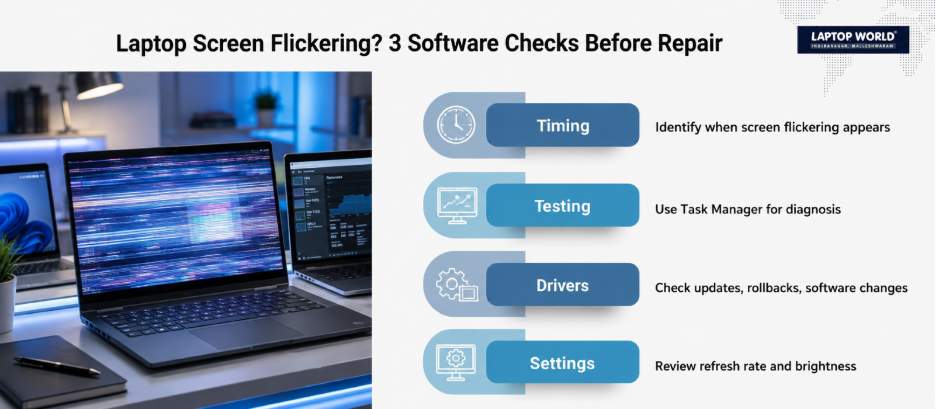
1. Find Out When the Flickering Happens
Start by observing the pattern.
Does the screen flicker:
- Immediately after switching the laptop on?
- Only after Windows or macOS loads?
- Only inside one application?
- When you move the laptop lid?
- At particular brightness levels?
- After the laptop wakes from sleep?
- When the charger is connected?
- During gaming or other graphics-heavy work?
The timing is useful because different causes produce different patterns.
If the display is stable during startup but begins flickering after the operating system loads, software or graphics-driver problems become more plausible. If it flickers before the operating system has loaded, hardware becomes more relevant.
Do not jump straight to replacing the panel. First identify the conditions that trigger the problem.
2. Use Task Manager as a Quick Windows Test
Windows provides a surprisingly useful diagnostic clue.
Press Ctrl + Shift + Esc to open Task Manager while the screen is flickering.
If Task Manager flickers along with everything else, Microsoft says a display-driver problem is more likely. If Task Manager remains stable while the rest of the screen flickers, an incompatible application may be responsible.
This does not prove that the display hardware is healthy. It simply helps separate two common software-related possibilities.
You can also try Windows + Ctrl + Shift + B, which resets the graphics driver. Windows may briefly blank or flicker during the reset.
If the problem disappears after this shortcut, note that result before paying for hardware work.
3. Check the Graphics Driver and Recent Software Changes
Think about what changed shortly before the flickering started.
Did Windows update recently? Did you install a new graphics application? Did the problem begin after installing a game, display utility, or driver?
Microsoft recommends updating, rolling back, or reinstalling the display driver depending on the circumstances. If the issue appeared immediately after a driver update, rolling that driver back can be helpful.
Do not download random driver packages from unfamiliar websites. Start with Windows Update or the laptop manufacturer’s support resources.
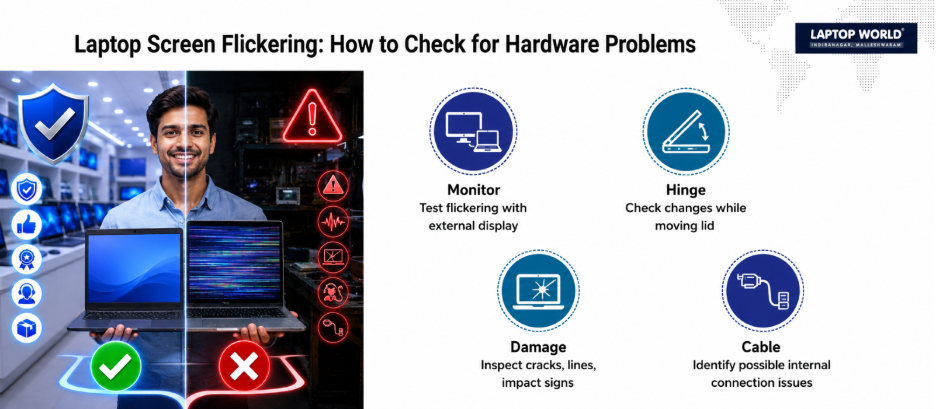
4. Connect an External Monitor or TV
This is one of the most useful hardware-versus-display tests available to laptop owners.
Connect the laptop to a compatible external monitor or television using the appropriate HDMI, DisplayPort, USB-C, or other supported connection.
Then compare the two displays.
If the external display is stable while the built-in screen flickers, the problem may be somewhere in the laptop’s internal display path. If both displays flicker, the problem may involve the graphics subsystem, driver, operating system, or another component upstream of the displays.
This test is not a definitive component-level diagnosis, but it can prevent you from making an expensive guess. You can go through our guide on common laptop problems and troubleshooting.
5. Slowly Change the Lid Angle
Here is a simple test many people overlook.
With the laptop running, slowly move the lid through different angles. Do not force it or repeatedly open and close it.
If the flickering changes when the lid moves, that is useful information for a technician. The display cable passes through the hinge area in many laptop designs, so movement-related symptoms can point toward a cable or connection problem.
It does not automatically prove that the cable is defective. The panel, hinge area, connector, or another component could also be involved.
This is one reason a technician should diagnose the fault before recommending a replacement.
6. Check Resolution, Refresh Rate and Brightness
Display settings can also affect how a screen behaves.
On Windows, check the display settings and confirm that the resolution and refresh rate are appropriate for your laptop’s panel. On compatible Macs, the Displays settings include refresh-rate controls. Apple notes that if a refresh rate is too low, it can make a display appear to flicker.
Brightness is worth testing too.
If flickering occurs only at certain brightness levels, record the exact conditions. Some laptop displays use different backlight-control methods, and brightness-dependent flicker can have causes that differ from a physically damaged panel.
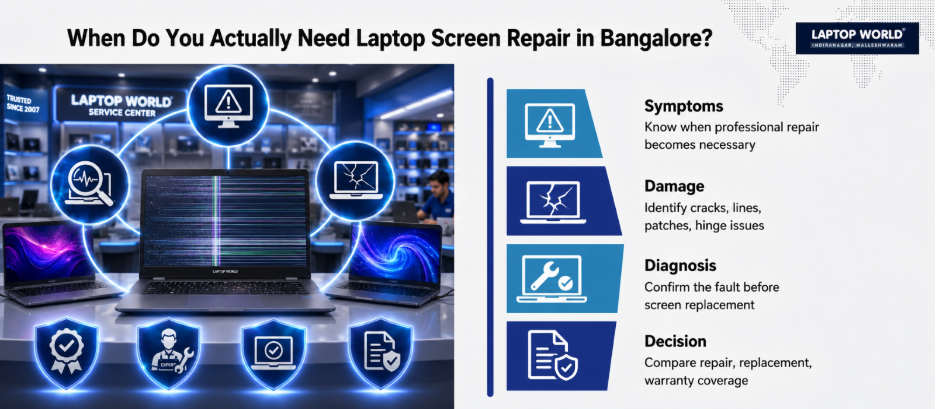
7. Check Whether Physical Damage or Warranty Coverage Changes the Decision
Finally, inspect the laptop carefully.
Look for:
- Cracks or impact marks on the display
- Lines or patches that appeared after a drop
- Damage around the hinge
- Liquid exposure
- A bezel that has separated from the display
- Flickering that began immediately after physical damage
If there is visible damage, hardware repair becomes more likely. However, avoid pressing the display, bending the lid, or repeatedly manipulating a damaged hinge to “test” it.
Also check your warranty or accidental-damage coverage before opening the laptop or taking it to a repair shop. Opening a device or using non-authorized parts can have warranty implications depending on the manufacturer and warranty terms.
When Should You Actually Pay for a Repair?
After these checks, you should have a much clearer picture. The important point is to ask for a diagnosis before authorizing a replacement.
A reputable technician should be able to explain what they found, what component they believe is responsible, whether repair or replacement is appropriate, and what part will be installed.
Our professional versus DIY screen-repair guide also explains why opening a laptop without the appropriate experience can create additional problems.
FAQs
1. Can a laptop screen flicker because of a graphics driver?
Yes. On Windows, Microsoft identifies display-driver problems as one common cause of screen flickering. The Task Manager test can help distinguish a driver issue from an incompatible application.
2. Does screen flickering always mean the LCD or OLED panel is damaged?
No. Software, graphics drivers, applications, display settings, and hardware components can all contribute to flickering. A panel replacement should follow diagnosis rather than be the first assumption.
3. How can I tell if a laptop display cable might be involved?
If the flickering changes when the laptop lid is moved through its normal range, tell the technician. That pattern can indicate a problem around the display connection or hinge area, although it does not identify the faulty component by itself.
4. Will connecting an external monitor diagnose the problem?
It can provide a useful clue. A stable external display alongside a flickering built-in display points toward the internal display path, while flickering on both displays suggests a broader graphics or software-related issue may be involved.
5. Should I replace the screen if restarting does not fix flickering?
Not necessarily. Restarting is only one basic troubleshooting step. Check the graphics driver, Task Manager behavior, external display output, and display settings before deciding that the screen needs replacement.