How to Upgrade SSD on My Laptop That Has One SSD Slot
One way to improve laptop performance and storage space is a laptop SSD upgrade. However, if your laptop has only one SSD slot, the process might seem tricky, but with the right approach, you can upgrade to a larger and faster SSD without replacing the entire laptop. In this guide, we will walk you through…
One way to improve laptop performance and storage space is a laptop SSD upgrade. However, if your laptop has only one SSD slot, the process might seem tricky, but with the right approach, you can upgrade to a larger and faster SSD without replacing the entire laptop. In this guide, we will walk you through everything from choosing the right SSD to installing it and transferring your data.
Why Consider a Laptop SSD Upgrade?
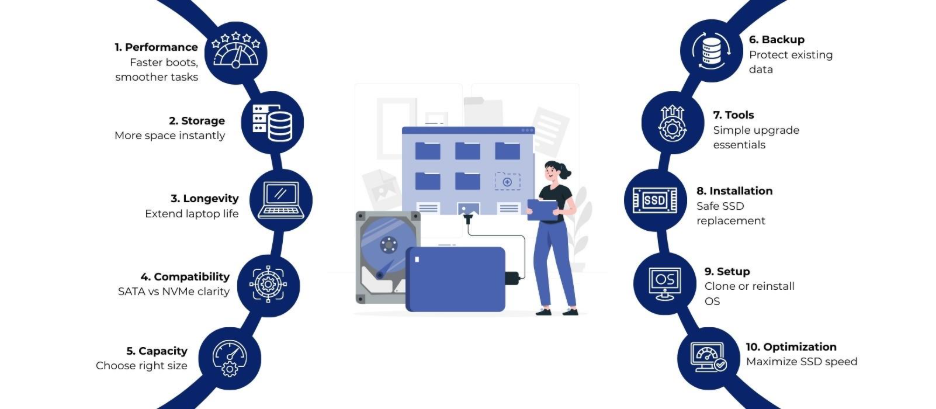
Upgrading your SSD can significantly improve speed, boot times, and overall system responsiveness. A laptop with a single SSD slot can still benefit immensely from an upgrade:
- Faster application launches and smoother multitasking.
- Increased storage space for files, games, and applications.
- Extended lifespan of your laptop without needing a full replacement.
- Reduced energy consumption, which can improve battery life.
Many users assume a single-slot laptop cannot be upgraded, but with cloning and careful installation, it is possible to replace the existing SSD with a larger or faster one.
Signs Your Laptop Needs an SSD Upgrade
Many laptop users continue working with their existing storage drive without realizing that performance issues are often storage-related. If your laptop takes several minutes to boot, applications freeze while loading, or file transfers seem unusually slow, it may be time for a laptop SSD upgrade.
Some common signs include:
- Frequent system lag while multitasking.
- Insufficient storage warnings.
- Slow startup and shutdown times.
- Delayed software installations and updates.
- Longer loading times for games and creative applications.
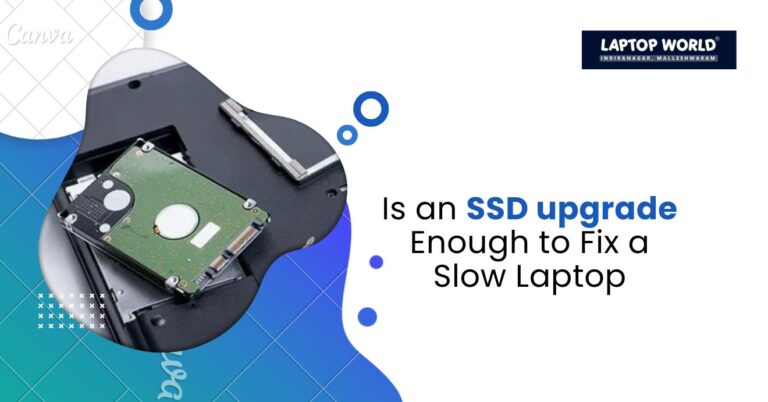
Traditional hard drives and older SSDs often struggle to keep up with modern software requirements. Therefore, upgrading to a newer SSD can provide an improvement in everyday tasks.
Step 1: Identify Your Laptop’s SSD Type
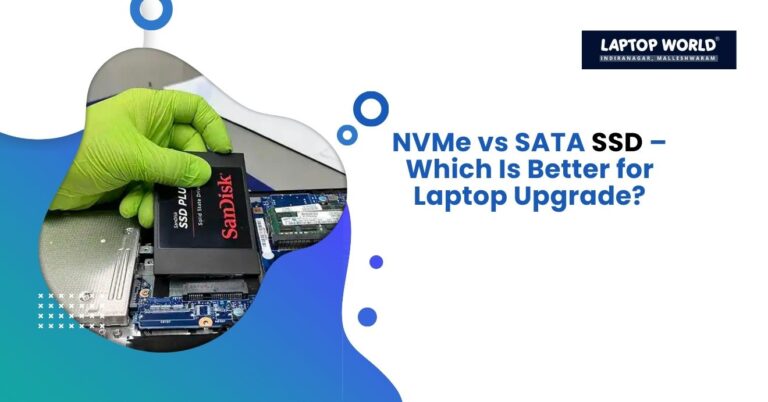
Before buying a new SSD, it’s important to know what type of SSD your laptop supports. Most laptops use either SATA or NVMe (PCIe) SSDs. You can check your laptop’s specifications through the manufacturer’s website.
- SATA SSDs: Slightly slower than NVMe, but widely compatible. Look for 2.5-inch drives for most SATA laptops.
- NVMe SSDs: Offer faster speeds and are typically in M.2 form factor. Check your motherboard’s slot length (commonly 2280) for compatibility.
Choosing the correct SSD type is necessary to prevent compatibility issues during your laptop SSD upgrade.
Step 2: Choose the Right SSD Capacity
The capacity of your new SSD depends on your storage needs. Common options are 256GB, 512GB, 1TB, and 2TB. Consider the following factors when selecting capacity:
- Your current storage usage and expected growth.
- Operating system and software requirements.
- Budget, as higher-capacity NVMe SSDs cost more.
For most users, a 1TB NVMe SSD provides a balance of speed, storage, and cost, making it perfect for a laptop SSD upgrade.
Understanding SSD Speed Specifications
When choosing a new SSD, while capacity is only one factor to consider, performance specifications also play an important role. SSD manufacturers typically list:
- Sequential Read Speed
- Sequential Write Speed
- Random Read/Write Performance
- PCIe Generation Support
For example, a SATA SSD generally offers speeds of around 500 MB/s, while modern NVMe SSDs can exceed 3,000 MB/s and even reach 7,000 MB/s on PCIe Gen4 drives.
However, purchasing the fastest SSD available does not always mean you will experience those speeds. Your laptop’s motherboard must support the SSD’s interface and PCIe generation.
Therefore, before making a purchase, verify:
- Maximum PCIe generation supported by your laptop.
- SSD slot compatibility.
Manufacturer recommendations.
Step 3: Backup Your Existing Data
Since your laptop has only one SSD slot, the current SSD must be replaced. But before proceeding, it’s important to back up your data. You can:
- Copy files to an external hard drive or cloud storage.
- Use a disk cloning tool to create an exact copy of your existing SSD. Software like Macrium Reflect or Acronis True Image can clone the drive, which simplifies transferring the operating system and applications.
This step avoids data loss during the laptop SSD upgrade process.
Step 4: Gather Tools and Materials
For most laptops, upgrading the SSD is straightforward, requiring only basic tools:
- A small screwdriver.
- Your new SSD (SATA or NVMe).
- An external enclosure or adapter if you plan to clone the old SSD before installation.
- Anti-static wrist strap (optional but recommended to protect components).
Having all tools ready helps make the process smoother and reduces the risk of damaging your laptop.
Step 5: Remove the Existing SSD
To remove your existing SSD, follow these steps:
- Power off the laptop and unplug it from any power source.
- Flip the laptop over and remove the bottom panel screws.
- Carefully open the back cover using a plastic pry tool if needed.
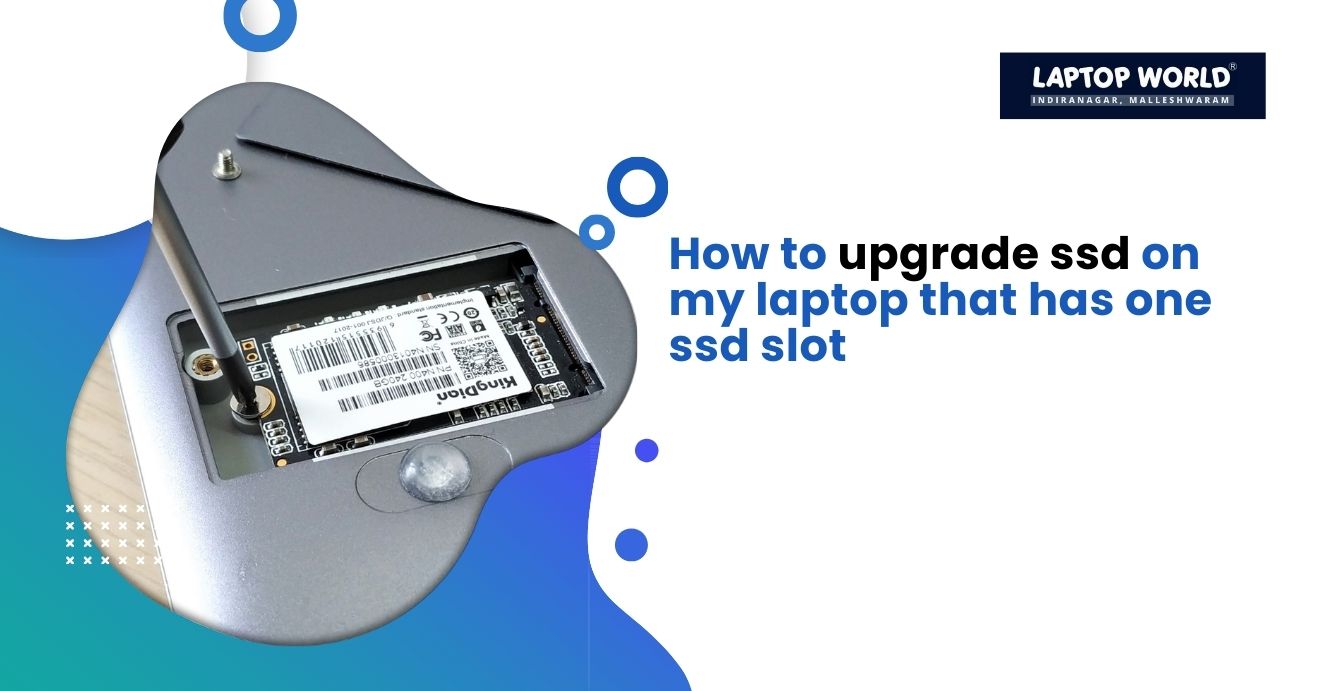
- Locate the existing SSD. For M.2 NVMe, it is typically held by a single screw.
- Remove the screw and slide the SSD out at a slight angle.
- For 2.5-inch SATA drives, disconnect the drive from the connector and lift it out.
Take note of the exact orientation and connectors to insert the new SSD correctly during the laptop SSD upgrade.
Step 6: Install the New SSD
Once the old SSD is removed, install the new SSD:
- Align the connector with the slot.
- Slide the SSD gently into place (for M.2 drives, insert at a 30-degree angle and push down to screw it in).
- Replace the screw or brackets to secure the SSD.
- Close the laptop’s back panel and tighten the screws.
After installation, your laptop is physically ready for use, but you still need to set up the system.
Step 7: Restore Data or Install Windows
With a single SSD slot, there are two ways to get your system running:
- Clone the old SSD: If you created a clone using an external adapter, simply swap the drives, and your laptop should boot as before.
- Fresh Windows installation: Boot from a Windows installation USB drive, format the new SSD, and install Windows. Reinstall applications and restore backed-up files.
A fresh installation can improve system performance by removing unnecessary software and temporary files.
Step 8: Optimize Your New SSD
After installation, you can optimize your new SSD for maximum performance:
- Enable AHCI mode in BIOS for SATA SSDs.
- Make sure the latest firmware is installed for your SSD.
- Activate TRIM support in Windows to maintain SSD longevity.
- Adjust power settings to prevent frequent disk sleep cycles.
These steps maintain speed and reliability, making your laptop SSD upgrade more effective.
Step 9: Test the SSD
Once your system is running, test the SSD to verify performance and health:
- Use CrystalDiskMark or AS SSD Benchmark to check read/write speeds.
- Open and use applications to confirm smooth operation.
- Monitor temperatures to prevent overheating during heavy use.
Testing confirms that the new SSD functions correctly, and your upgrade was successful.
Common Challenges in Laptop SSD Upgrade
While upgrading is generally straightforward, some challenges can arise:
- Compatibility issues: Buying the wrong type of SSD can prevent installation.
- Data transfer problems: Cloning errors or incomplete backups can lead to missing files.
- BIOS recognition: Sometimes, the new SSD may not appear in BIOS, which may require a firmware update.
- Physical space limitations: Ultra-thin laptops may have non-standard SSD sizes.
Being aware of these issues helps you complete the laptop SSD upgrade without frustration.
Tips for a Successful Laptop SSD Upgrade
- Double-check the SSD size and form factor before purchasing.
- Keep the laptop powered off and unplugged while performing the upgrade.
- Handle SSDs with care to avoid static electricity damage.
- Consider a professional if you’re uncomfortable performing the upgrade yourself.
- Regularly back up data to prevent potential loss in future upgrades.
Following these tips makes the upgrade process smoother and minimizes risk.
SSD Upgrade vs Buying a New Laptop
Many users wonder whether they should upgrade their SSD or replace the entire laptop. The answer largely depends on the age and condition of the device.
If your laptop is less than five years old and still meets your computing needs, a laptop SSD upgrade can deliver significant performance improvements. On the other hand, buying a new laptop may be worth considering if your device suffers from multiple hardware limitations, outdated components, or lacks support for modern software requirements.
Final Thoughts
Upgrading the SSD in a laptop with only one SSD slot is completely possible. By following step-by-step installation instructions, you can turn an aging laptop into a faster and more reliable machine.
If you need help with your laptop SSD upgrade, visit Laptop World in Malleshwaram for expert guidance!
About Laptop World
With 20 years of experience in Retail, Laptop World is Bangalore’s oldest multi-brand laptop store, offering a personalized customer experience. We are unbiased towards any particular brand, dealing with top names like HP, Lenovo, Dell, Asus, and Apple. Our commitment to excellent customer service sets us apart.
For businesses, our corporate division, Nurture IT, provides comprehensive IT solutions tailored for startups in Indiranagar, ensuring all your IT needs are met in one place. From laptops to networking, servers, Information Security, End User Protection – we have you covered.
FAQs
1. Can I upgrade my laptop if it has only one SSD slot?
Yes, you can replace the existing SSD with a larger or faster one using cloning or a fresh installation.
2. How do I know which SSD is compatible with my laptop?
Check your laptop specs for SATA or NVMe support, form factor (e.g., 2.5-inch, M.2), and slot length.
3. Do I need to back up my data before upgrading the SSD?
Yes, backup is crucial. You can use cloud storage, external drives, or clone your old SSD to avoid data loss.
4. Will upgrading my SSD make my laptop faster?
Absolutely. A new SSD improves boot time, app loading, multitasking, and overall system responsiveness.