How to Extend Your Laptop Battery Life: Expert Tips That Actually Work
Introduction Few things are more frustrating than watching your laptop battery percentage drop rapidly. Whether you use your laptop for business or daily tasks, maximizing laptop battery life can save you from constantly searching for a power outlet. Modern laptops are equipped with advanced lithium-ion batteries designed to last for years. However, factors like improper…
Introduction
Few things are more frustrating than watching your laptop battery percentage drop rapidly. Whether you use your laptop for business or daily tasks, maximizing laptop battery life can save you from constantly searching for a power outlet.
Modern laptops are equipped with advanced lithium-ion batteries designed to last for years. However, factors like improper charging practices, excessive background activity, high screen brightness, and poor maintenance can significantly reduce battery performance over time.
The good news is that extending your laptop battery life does not require complicated software or expensive upgrades. A combination of smart settings, proper usage habits, and regular maintenance can help your battery perform better for longer periods. In this guide, we’ll explore expert-backed strategies that actually work.
Understand What Affects Laptop Battery Life
Before improving battery performance, it’s important to understand what causes batteries to drain quickly.
Several factors contribute to reduced battery efficiency:
- High screen brightness
- Multiple background applications
- Constant Wi-Fi and Bluetooth usage
- Power-hungry software
- Extreme temperatures
- Aging battery cells
- Poor charging practices
Lithium-ion batteries naturally lose some capacity as they age. However, good battery optimization practices can slow down this process and maintain healthy battery performance for a longer time.
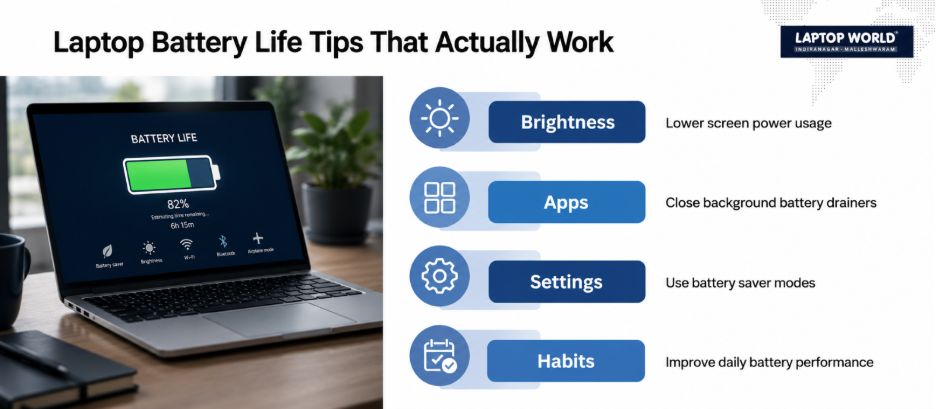
Adjust Display Settings
Your laptop display is one of the largest consumers of battery power.
Lower Screen Brightness
Reducing brightness by even 20–30% can noticeably improve battery runtime. Most laptops allow brightness adjustments through:
- Keyboard shortcuts
- Windows Settings
- macOS System Settings
Use only the brightness level necessary for comfortable viewing.
Enable Adaptive Brightness
Many laptops feature adaptive brightness technology that automatically adjusts screen intensity based on ambient lighting conditions.
This helps reduce unnecessary power consumption while maintaining visibility.
Shorten Screen Timeout
Set your display to turn off after a few minutes of inactivity. Recommended settings:
- Battery mode: 2–5 minutes
- Plugged-in mode: 10–15 minutes
Use Built-In Battery Saver Modes
Operating systems provide dedicated battery-saving features.
Windows Battery Saver
Windows Battery Saver:
- Reduces background activity
- Limits app refresh rates
- Adjusts system performance
- Lowers power consumption
macOS Low Power Mode
Apple’s Low Power Mode:
- Reduces energy-intensive tasks
- Optimizes processor activity
- Extends battery runtime
Activating these features during travel or long work sessions can improve laptop battery life.
Manage Background Applications
Many applications continue running even when you’re not actively using them.
Common battery-consuming apps include:
- Cloud sync software
- Communication tools
- Browser tabs
- Antivirus scans
- Auto-update services
Check Task Manager
On Windows:
- Open Task Manager
- Review running processes
- Close unnecessary applications
On macOS:
- Use Activity Monitor
- Identify resource-heavy apps
- Quit unused programs
Reducing background activity is one of the easiest forms of battery optimization.
Also Read: Where to Get a Legit Battery Replacement for HP Pavilion 14? DIY or Not?
Optimize Browser Usage
Web browsers often consume more battery than users realize.
Reduce Open Tabs
Each open tab consumes:
- RAM
- CPU resources
- Battery power
Keeping dozens of tabs open can accelerate battery drain.
Disable Unnecessary Extensions
Browser extensions constantly run in the background.
Remove extensions you rarely use to reduce system workload.
Use Efficient Browsers
Modern browsers like Microsoft Edge and Safari include power-saving technologies designed to improve battery efficiency.
Improve Your Laptop Charging Habits
Proper laptop charging habits play a key role in long-term battery health.
Avoid Frequent Full Discharges
Older battery technologies benefited from complete discharge cycles, but modern lithium-ion batteries do not. To prevent premature degradation, avoid letting the battery completely discharge to 0%.
Avoid Constant 100% Charging
Many manufacturers recommend maintaining charge levels between approximately 20% and 80% for daily use. Several modern laptops include battery protection modes that limit charging to around 80%.
Use Original Chargers
Always use manufacturer-approved chargers or certified replacements. Low-quality chargers can:
- Deliver unstable power
- Generate excess heat
- Reduce battery lifespan
Good laptop charging habits contribute significantly to maintaining battery capacity over the years.
Control Wireless Features
Wireless connectivity continuously consumes power.
Turn Off Bluetooth When Not Needed
If you’re not using:
- Wireless headphones
- Keyboards
- Mice
- Other Bluetooth accessories
Disable Bluetooth to conserve energy.
Disconnect Unused Wi-Fi
When working offline, turning off Wi-Fi can reduce power consumption.
Use Airplane Mode
Airplane Mode disables:
- Wi-Fi
- Bluetooth
- Cellular connections (where applicable)
This can noticeably extend battery runtime during offline work.
Keep Your Laptop Cool
Heat is one of the biggest threats to battery health. Lithium-ion batteries perform best within moderate temperature ranges.
Avoid Overheating
Common causes include:
- Blocked air vents
- Soft surfaces like beds or couches
- Dust accumulation
- Intensive workloads
Improve Airflow
Use your laptop on:
- Desks
- Tables
- Hard, flat surfaces
Proper ventilation helps reduce heat buildup.
Clean Cooling Vents
Regular cleaning is one of the best laptop maintenance tips for preserving both battery health and overall performance.
Address Battery Drain Issues Early
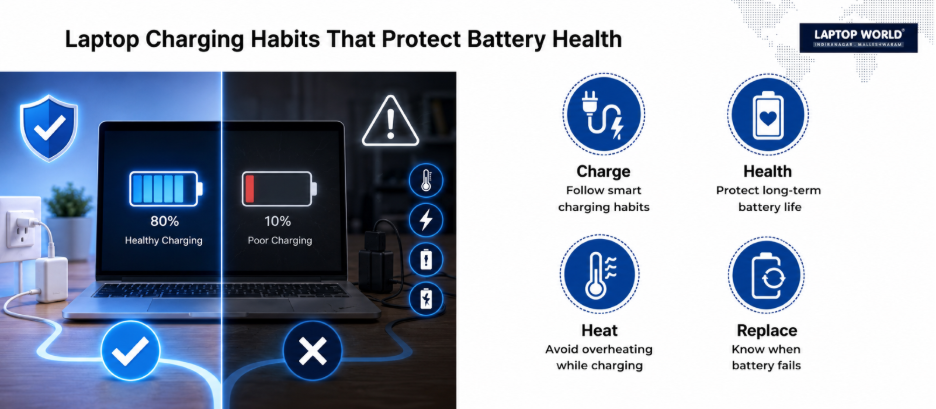
A sudden battery drain issue often indicates an underlying problem. Possible causes include:
- Background applications
- Malware
- Outdated drivers
- Hardware problems
- Failing battery cells
Check Battery Health Reports
Windows users can generate battery reports using built-in tools.
macOS users can review battery condition within system settings.
Update Software
Software updates frequently contain:
- Performance improvements
- Power management enhancements
- Bug fixes
Keeping your operating system updated can help resolve battery-related problems.
Reduce Startup Programs
Many applications automatically launch when your laptop starts. These programs consume:
- Memory
- Processor resources
- Battery power
Review startup applications regularly and disable those that aren’t essential.
A lean startup process helps improve both performance and battery efficiency.
Use Dark Mode Where Appropriate
On laptops with OLED displays, dark mode can reduce power consumption because darker pixels require less energy.
While the effect varies depending on screen technology, dark mode can contribute modestly to extending battery runtime.
Practice Regular Laptop Maintenance
Consistent maintenance helps keep your system operating efficiently. Important laptop maintenance tips include:
Keep Software Updated
Updated software often includes power-management improvements.
Remove Unused Programs
Unused applications can continue consuming resources.
Scan for Malware
Malicious software can increase battery usage.
Keep Storage Organized
Extremely full storage drives can impact overall system performance.
Regular maintenance supports better battery efficiency and a smoother computing experience.
Know When Battery Replacement Is Necessary
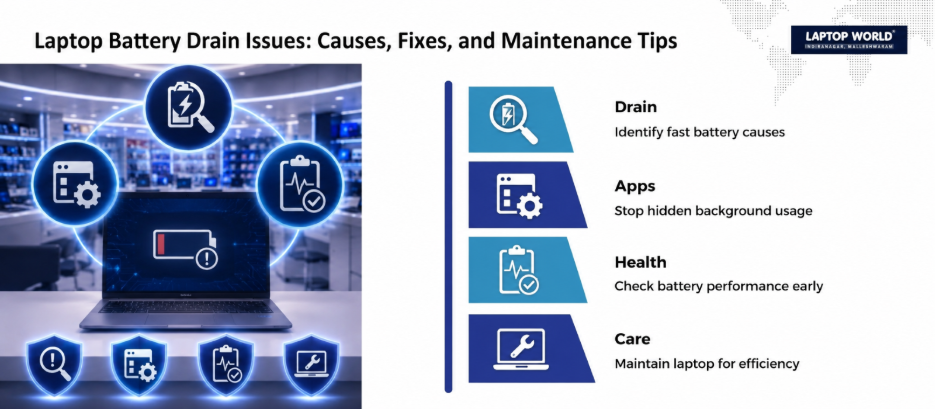
Even with excellent care, laptop batteries do not last forever. Most lithium-ion laptop batteries are designed to handle several hundred charge cycles before noticeable capacity loss occurs.
Signs a replacement may be needed include:
- Rapid battery depletion
- Unexpected shutdowns
- Significant reduction in runtime
- Battery health warnings
- Swollen battery casing
Replacing a worn battery can restore much of your laptop’s original portability and performance.
Final Thoughts
Improving laptop battery life doesn’t require technical expertise. Small adjustments. Following effective battery optimization practices can collectively make a big difference.
At the same time, addressing a battery drain issue early and following regular laptop maintenance tips can help preserve battery health for years. By adopting these expert recommendations, you can enjoy longer runtimes, better productivity, and improved overall laptop performance.
If your laptop no longer holds a charge like it used to, visit Laptop World in Malleshwaram, Bangalore, for expert guidance.
About Laptop World
With 20 years of experience in Retail, Laptop World is Bangalore’s oldest multi-brand laptop store, offering a personalized customer experience. We are unbiased towards any particular brand, dealing with top names like HP, Lenovo, Dell, Asus, and Apple. Our commitment to excellent customer service sets us apart.
For businesses, our corporate division, Nurture IT, provides comprehensive IT solutions tailored for startups, ensuring all your IT needs are met in one place. From laptops to networking, servers, Information Security, and Endpoint Protection – we have you covered.
FAQs
1. What is the best way to improve laptop battery life?
Reducing screen brightness, limiting background applications, and using battery saver modes are among the most effective methods.
2. Does keeping a laptop plugged in all the time damage the battery?
Modern laptops have battery management systems, but keeping the battery at 100% continuously may contribute to faster battery aging over time.
3. How often should I charge my laptop?
It’s generally beneficial to recharge before the battery becomes critically low and avoid frequent full discharges.
4. What causes a battery drain issue?
Common causes include background applications, outdated software, malware, excessive screen brightness, and aging batteries.
5. Is battery optimization software necessary?
Most operating systems already include built-in battery optimization tools that are sufficient for most users.