
The Hidden Risks of Mixing Different RAM Speeds and Brands in Your Laptop
A laptop can have two RAM modules installed and still fail to deliver the performance you expected. This is because they might have totally different speeds, timings, capacities, densities, or even underlying memory setups. This is where a laptop RAM upgrade becomes more complicated than simply buying another 8GB or 16GB stick. The good news…
A laptop can have two RAM modules installed and still fail to deliver the performance you expected. This is because they might have totally different speeds, timings, capacities, densities, or even underlying memory setups.
This is where a laptop RAM upgrade becomes more complicated than simply buying another 8GB or 16GB stick.
The good news is that mixing RAM is not automatically a disaster. Many laptops can operate with modules from different manufacturers or with different rated speeds. However, the system has to find a memory configuration that both modules can support. If the specifications do not line up well, you may get reduced memory speed, compatibility problems, loss of optimal dual-channel operation, or system instability.
Understanding those trade-offs before buying RAM can save you from spending money twice.

Different RAM Speeds Usually Mean the Faster Module Does Not Run at Its Advertised Speed
Suppose your laptop contains 8GB DDR4-2666 RAM and you add an 8GB DDR4-3200 module. That does not normally mean your laptop suddenly gets 3200MT/s memory.
When different memory speeds are installed, the system generally operates at a speed supported by the slower module. So, in this example, the 3200MT/s module may operate at 2666MT/s.
However, that is not necessarily a problem. The more important question is whether the laptop supports the memory type, capacity, configuration, and other electrical characteristics involved.
For anyone considering a laptop RAM upgrade, start with what your laptop’s processor, motherboard, and BIOS actually support.
Different Brands Are Not Automatically Incompatible
There is a common misconception that both RAM sticks must carry the same brand logo.
That is not true.
A Crucial module and a Kingston module, for example, can potentially work together if their relevant specifications and the laptop’s requirements are compatible. The brand itself is not the deciding factor.
The bigger concern is the underlying configuration. Memory modules can differ in:
- Speed
- CAS latency and other timings
- Voltage
- Memory density
- DRAM organization
- Rank configuration
- Capacity
- Memory generation
- JEDEC profiles or performance profiles
Therefore, “same brand” is a useful shortcut, but “matching specifications” is the more technically meaningful approach.
The Dual-Channel Question Matters More Than Many Buyers Realize
Dropping in a second RAM module isn’t just about getting a bump in capacity. It also unlocks multi-channel memory, which can give your laptop a really nice performance kick.
Kingston notes that adding a second identical module to a system operating in single-channel mode can enable dual-channel operation and increase available memory bandwidth.
However, not every mixed configuration behaves identically.
Different capacities, densities, or module organizations can affect how memory channels are arranged. In some configurations, part of the memory may operate differently from the rest rather than giving you the simple “two identical sticks = maximum bandwidth” scenario.
That is why capacity alone should not drive a laptop RAM upgrade.

Mixed RAM Can Cause Stability Problems
The most frustrating RAM problems are not always obvious.
A laptop might boot normally after installing a mismatched module and then develop problems later, like:
- Random application crashes
- Blue-screen errors
- System freezes
- Unexpected restarts
- Failure to wake from sleep
- Failure to boot
- Memory errors under heavy workloads
This happens because memory compatibility depends on more than the advertised speed.
That makes post-installation testing important. If the laptop suddenly becomes unreliable after a laptop RAM upgrade, do not immediately blame Windows or the SSD. Remove the new memory and test the original configuration. Then test the new module separately, if the laptop supports doing so.
RAM Timings Can Be the Silent Difference
Two DDR4 modules can both be labelled “3200” and still not be identical.
One may have different CAS latency or secondary timings. Another may use different DRAM components or internal organization.
When mixed, the system has to select settings that the installed modules can operate with.
For everyday users, this means you should not obsess over one timing number in isolation. Compatibility should come first, followed by capacity and the supported memory speed.
DDR Generation Cannot Be Treated Like a Speed Upgrade
This is one area where buyers need to be particularly careful.
DDR4 and DDR5 are different memory generations. You cannot simply swap a faster version into a DDR4 laptop. The physical keying and platform support differ, and the laptop must be designed for the specific memory generation.
So, before initiating a laptop RAM upgrade, identify whether your machine uses DDR4, DDR5, or another supported generation. Never purchase solely on the basis of capacity or speed.
Capacity Matching Is Usually the Safer Route
Imagine your laptop currently has 8GB installed and has two accessible slots.
You could theoretically add a 16GB module, depending on what the laptop supports. But that does not automatically make it the best configuration.
If the system supports a matched 8GB + 8GB configuration, that may provide a more predictable dual-channel arrangement than mixing 8GB and 16GB.
On the other hand, if your workload genuinely benefits from 24GB or 32GB, the additional capacity can be more valuable than maintaining a perfectly symmetrical configuration.
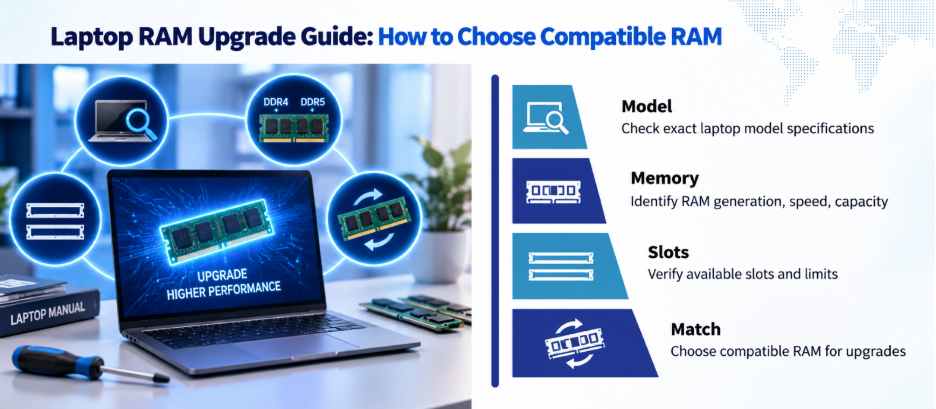
The Smart Way to Plan a RAM Upgrade
Before ordering anything, collect these details:
1. Laptop model: Find the exact model number.
2. Current RAM: Check capacity, generation, and speed.
3. Number of slots: Some laptops have two slots, while others have one slot or soldered memory combined with an accessible slot.
4. Maximum supported memory: Check the manufacturer’s specifications.
5. Supported memory speed: A higher-rated module may simply run at the laptop’s supported speed.
6. Module type: Confirm that you are buying the correct laptop memory format.
7. Existing module specifications: If you plan to keep the original stick, matching its important specifications is usually the safer route.
Should You Replace the Existing RAM Instead of Mixing?
Sometimes, yes.
If your laptop has two slots and currently contains two mismatched or low-capacity modules, replacing them with a matched kit can provide a cleaner configuration.
For demanding workloads, replacing both modules with a properly matched higher-capacity configuration can also reduce the variables involved.
The key is to make the decision based on your laptop’s supported configuration.
The Bottom Line
RAM is one of the easiest laptop components to misunderstand because a module can physically fit while still being a poor match for the system. Therefore, a successful laptop RAM upgrade starts with compatibility, then considers capacity, memory speed, channel configuration and workload.
For users who would rather have the compatibility and installation side checked professionally, visit the Laptop World store in Malleshwaram today!
FAQs
1. Is mixing RAM speeds bad for a laptop?
Not necessarily. The main issue is that the system may operate at a lower speed than the faster module’s rating.
2. Does RAM have to be the same brand for dual-channel operation?
No. Identical modules are generally preferable, but dual-channel operation depends on the laptop’s memory architecture and the characteristics of the installed modules.
3. Should RAM have the same CAS latency?
Matching latency is preferable when building a predictable configuration. If modules have different timings, the system may use more conservative settings to accommodate them.
4. Can I add 16GB RAM to a laptop that already has 8GB?
It depends on the laptop’s supported maximum capacity and memory architecture. An 8GB + 16GB configuration may work on some systems, but it may not provide the same memory-channel behavior as a matched configuration.
5. Can DDR4 and DDR5 RAM be mixed?
No. DDR4 and DDR5 are different memory generations and are not interchangeable in a typical laptop platform.