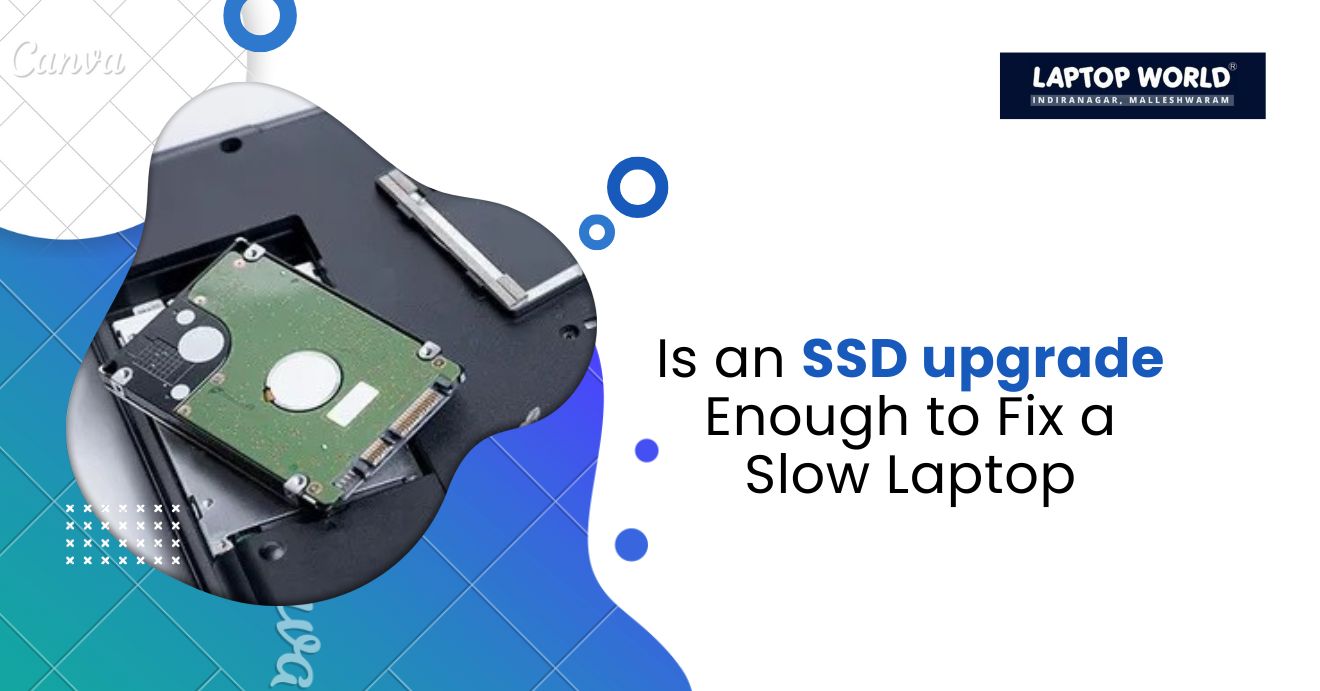
Is an SSD Upgrade Enough to Fix a Slow Laptop?
Is your laptop feeling sluggish, taking forever to boot, or struggling with multiple apps? If so, a laptop SSD upgrade might be the first solution that comes to mind. Solid-state drives (SSDs) are widely known for their speed compared to traditional hard disk drives (HDDs). But before you rush to swap your drive, it’s important…
Is your laptop feeling sluggish, taking forever to boot, or struggling with multiple apps? If so, a laptop SSD upgrade might be the first solution that comes to mind. Solid-state drives (SSDs) are widely known for their speed compared to traditional hard disk drives (HDDs). But before you rush to swap your drive, it’s important to understand whether an SSD alone can solve all your laptop performance problems.
Why Laptops Slow Down
Laptops become slow for multiple reasons. The most common culprits include:
- Storage Bottlenecks: HDDs, with their spinning platters and mechanical read/write heads, deliver sequential read speeds of 80–160 MB/s and random read speeds below 1-2 MB/s (measured in IOPS). SSDs, using NAND flash memory, achieve sequential reads of 500–7,000 MB/s and random reads of 30,000–100,000 IOPS, depending on the interface (SATA vs. NVMe).
- RAM Constraints: When physical RAM fills up, the system relies on virtual memory (page file) stored on the drive. An HDD makes this swap process much worse, which causes noticeable lag.
- CPU Aging: Older processors struggle with modern multitasking or resource-heavy applications, regardless of storage speed.
- Software Bloat: Accumulated background processes, malware, or fragmented files degrade performance.
- Thermal Throttling: Overheating forces the CPU/GPU to reduce clock speeds.
A laptop SSD upgrade directly addresses the first two issues—storage and swap-related slowdowns—but leaves the others untouched.
What a Laptop SSD Upgrade Actually Fixes
1. Boot Times
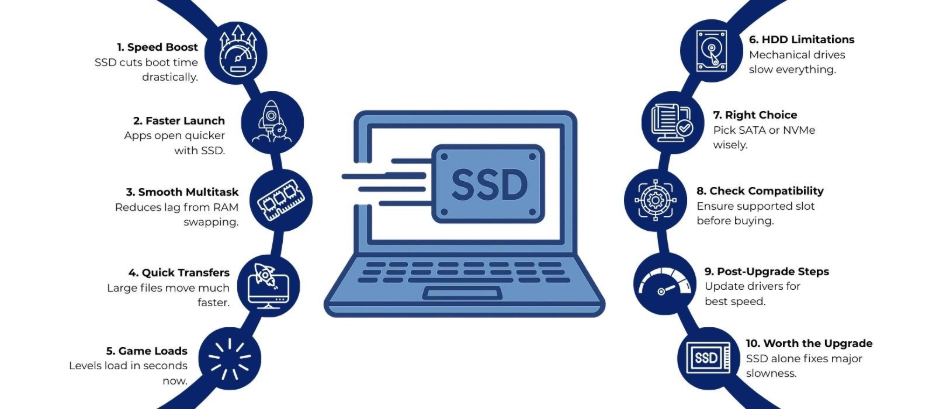
Windows 10/11 on an HDD typically takes around 30–60 seconds to boot, depending on system age, hardware, and startup apps. After a laptop SSD upgrade to a SATA SSD, boot times generally drop to approximately 10–20 seconds. NVMe SSDs can further reduce boot times to around 8–12 seconds in many scenarios.
2. Application Launch Speeds
Launching Adobe Photoshop on an HDD can take 15–30 seconds due to thousands of small file reads. The same operation on a SATA SSD completes in 3–6 seconds, while NVMe drives manage it in under 2 seconds. This stems from the 50–100× improvement in random 4K read performance.
3. File Transfer and System Responsiveness
Copying a 10 GB folder on an HDD averages 25–40 MB/s. A SATA SSD sustains 400–500 MB/s, and NVMe models exceed 3,000 MB/s. Everyday tasks—opening File Explorer, searching files, or switching apps—feel instantaneous because the OS no longer waits on mechanical seek times (typically 8–12 ms for HDDs vs. 0.1 ms for SSDs).
4. Gaming Load Times
Games like Cyberpunk 2077 load levels in 40–60 seconds from an HDD. SATA SSDs reduce this to 15–20 seconds, and NVMe drives hit 8–12 seconds. Texture streaming stutters also diminish due to higher IOPS.
When an SSD Upgrade Is Enough
There are situations where a laptop SSD upgrade alone can optimize performance. These include:
- Old Laptops with HDDs – Replacing a traditional hard drive with an SSD offers the most noticeable improvement in boot times and file access.
- Basic Productivity Tasks – Web browsing, office software, and media playback benefit greatly from faster storage.
- Gaming Load Times – While FPS may depend on GPU and CPU, an SSD reduces game loading screens significantly.
In these cases, a laptop SSD upgrade often feels like a new laptop experience.
Choosing the Right SSD
Not all SSDs deliver the same performance. Choosing the right type depends on your laptop and your needs:
- SATA SSDs – Compatible with most laptops and affordable, offering a noticeable speed boost.
- NVMe SSDs – Faster than SATA, ideal for gaming, video editing, and high-speed data transfer, but may require specific M.2 slots.
- Capacity Considerations – Pick a drive that balances speed and storage. Moving from a 256GB HDD to a 512GB or 1TB SSD gives room for files, software, and growth.
You should check compatibility and installation options before purchasing an SSD. Some laptops support dual drives, while others may require swapping the existing drive.
Practical Steps After a Laptop SSD Upgrade
- Transfer Data or Reinstall OS – Cloning your old drive or performing a fresh installation can optimize speed gains.
- Update Drivers and Firmware – SSD firmware updates and system drivers help maximize performance.
- Optimize Storage – Set the OS to handle SSDs correctly, such as disabling defragmentation (not needed for SSDs) and enabling TRIM support.
Final Thoughts
A laptop SSD upgrade can dramatically improve speed, responsiveness, and user experience, particularly for older laptops with HDDs or for basic productivity tasks. However, it is not a cure-all. If your primary goal is faster boot times, quicker application loading, and reduced file transfer delays, a laptop SSD upgrade is a highly effective first step.
Ready to boost your laptop speed? Visit Laptop World in Malleshwaram for the perfect SSD upgrade and expert guidance!
About Laptop World
With 20 years of experience in Retail, Laptop World is Bangalore’s oldest multi-brand laptop store, offering a personalized customer experience. We are unbiased towards any particular brand, dealing with top names like HP, Lenovo, Dell, Asus, and Apple. Our commitment to excellent customer service sets us apart.
For businesses, our corporate division, Nurture IT, provides comprehensive IT solutions tailored for startups in Indiranagar, ensuring all your IT needs are met in one place. From laptops to networking, servers, Information Security, End User Protection – we have you covered.
FAQs
1. How does an SSD make a laptop faster?
SSDs use flash memory instead of spinning disks, allowing faster boot times, quicker file access, and smoother application launches.
2. Will an SSD upgrade fix all laptop slowdowns?
No. An SSD improves storage-related performance but cannot fix issues caused by low RAM, aging CPUs, malware, or thermal throttling.
3. Which laptops benefit most from an SSD upgrade?
Older laptops with HDDs or laptops used mainly for web browsing, office software, or media playback see the most noticeable improvements.
4. What’s the difference between SATA and NVMe SSDs?
SATA SSDs are compatible with most laptops and offer good speed boosts, while NVMe SSDs are faster and suited for gaming or high-speed tasks, requiring specific M.2 slots.
5. Can an SSD reduce gaming load times?
Yes. SSDs decrease loading times for games and reduce texture streaming delays, though FPS still depends on the GPU and CPU.