Before You Exchange Your Old Laptop in Bangalore: A Data-Safety Checklist
Selling or exchanging an old laptop feels straightforward: back up your files, hand over the machine, and take home the new one. However, many people underestimate what happens to the data left behind. Your laptop may contain years of documents, photographs, browser sessions, saved passwords, financial records, work files, downloaded documents, and account credentials. Therefore, deleting a few…
Selling or exchanging an old laptop feels straightforward: back up your files, hand over the machine, and take home the new one. However, many people underestimate what happens to the data left behind.
Your laptop may contain years of documents, photographs, browser sessions, saved passwords, financial records, work files, downloaded documents, and account credentials. Therefore, deleting a few folders does not address all of those risks.
If you are considering an old laptop exchange offer in Bangalore, treat data removal as a separate project. The goal is simple: move everything you need, disconnect the laptop from your digital accounts, and use an appropriate sanitization method before the device changes hands.
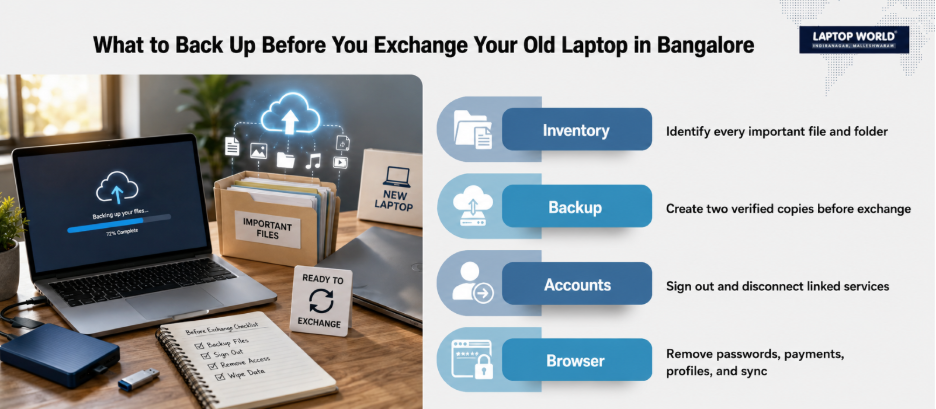
Here is a practical checklist you can follow.
1. Start With a Complete Data Inventory
Before deleting anything, identify what actually lives on the laptop.
Check:
- Documents and Desktop folders
- Downloads
- Pictures, Videos and Music
- Email archives
- Browser bookmarks and locally stored profiles
- Messaging-app files
- Password-manager data
- Accounting or tax documents
- SSH keys, certificates and configuration files
- Work-related files
- Files stored outside your normal user folders
Also check external drives, SD cards and USB devices you may have used with the laptop.
A useful approach is to create a temporary folder called “Transfer” and copy everything you want to keep into it. Then review that folder before moving the data to your new machine.
Laptop World also discusses practical data migration steps when moving to a new laptop.
2. Make Two Backups, Not One
A backup is only useful if you can actually restore it.
For important files, consider maintaining two copies using different storage locations. For example, you could keep one copy on an external drive and another in a trusted cloud service.
Do not assume that because a file appears in your cloud folder, the entire file is safely available offline. Therefore, open important files from the destination and verify them. Pay particular attention to:
- Family photographs
- Financial documents
- Work presentations
- Project folders
- Password-manager databases
- Browser bookmarks
- Important emails
- Software licence information
Only start wiping the old laptop after you have confirmed that the data you need exists somewhere else.
3. Sign Out Before You Reset
A factory reset is not the only step.
First, remove the laptop from the accounts and services associated with it.
Depending on your setup, this can include:
- Microsoft account
- Google account
- Apple Account
- OneDrive
- iCloud
- Dropbox
- Adobe
- Microsoft 365
- Password managers
- Messaging applications
- VPN software
- Device-management platforms
If a service has a “sign out of all devices” or device-management page, review it after the old laptop has been reset.
For Apple devices, the current guidance provides Erase All Content and Settings on supported Macs. It removes settings, data, and apps while leaving the operating system installed.
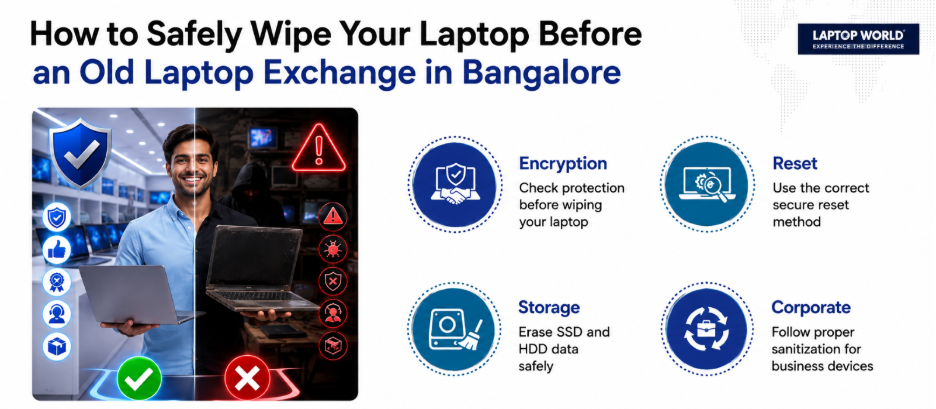
4. Check Encryption Before Wiping
If your laptop uses full-disk encryption, know what protection is active before you reset it.
On Windows, BitLocker may be enabled depending on the device and configuration. Therefore, Microsoft recommends having the BitLocker recovery key available before resetting an encrypted PC.
On a Mac, storage security depends on the model, operating system, and encryption configuration.
This matters because storage technology has changed significantly. Modern SSDs do not behave exactly like traditional hard drives, so blindly applying old “overwrite the disk seven times” advice is not a universal strategy.
For sensitive information, the appropriate sanitization method depends on the storage technology and the confidentiality of the data.
5. Use the Correct Reset Method
If you are giving away or selling a Windows laptop, Remove everything is the relevant Windows reset option, rather than “Keep my files.”
Microsoft also provides a Clean data option intended for devices being sold, donated, or recycled. Microsoft notes that this makes removed files harder for others to recover, but also states that the consumer feature does not meet government or industry data-erasure standards.
That distinction matters.
For an ordinary personal laptop containing routine files, the built-in reset may be appropriate. For a machine that contained highly confidential corporate, financial, legal, or regulated information, you may need a more rigorous sanitization process.
6. Do Not Forget Browser Data
Browsers can contain more information than people realise.
Before handing over the laptop:
- Sign out of browser profiles.
- Check saved passwords.
- Remove saved payment information.
- Review autofill data.
- Check browser extensions.
- Remove synced accounts.
- Confirm bookmarks are backed up.
- Review downloaded files.
This is one of the easiest areas to overlook when preparing for an old laptop exchange offer in Bangalore.
7. Disconnect the Laptop From Your Devices
Your laptop may also be connected to phones, tablets, headphones, smart devices, and other computers. Therefore, review device lists for your major accounts and remove the old laptop where appropriate.
The objective is not simply to erase the laptop. It is to remove the laptop’s place in your wider digital ecosystem.
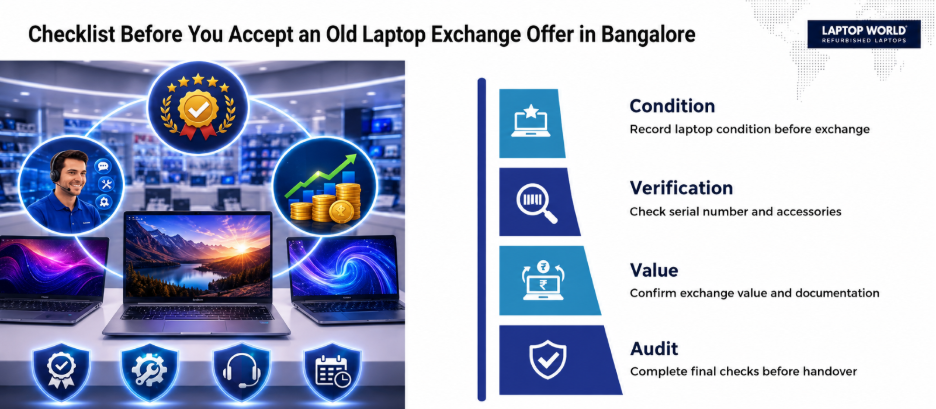
8. Record the Laptop’s Condition Before Exchange
Data safety and transaction safety go together. Before handing over the machine, photograph:
- Laptop exterior
- Screen
- Keyboard
- Serial number
- Charger
- Any visible damage
Also record the agreed exchange value and the condition discussed during evaluation.
9. If the Laptop Does Not Boot, Do Not Guess
A dead laptop creates a different problem.
If the machine will not start, you cannot simply assume that its data has disappeared. The storage device may still contain everything.
Do not hand over a non-working laptop containing sensitive information without first deciding how its storage will be handled.
For ordinary personal devices, a qualified service provider may be able to remove or sanitize the storage appropriately. For highly sensitive data, consider professional media sanitization based on the type of drive and sensitivity of the information.
10. Do a Final Five-Minute Audit
Before leaving the store, stop and run through this final check:
- Important files have been transferred.
- Backups have been opened and verified.
- Password-manager data is available on the new device.
- Microsoft/Google/Apple accounts have been reviewed.
- Browser profiles and saved credentials have been handled.
- Cloud-storage accounts have been disconnected as appropriate.
- The laptop has been reset or professionally sanitized.
- External storage cards and USB drives have been removed.
- The serial number and physical condition have been recorded.
- The exchange value and transaction details are documented.
This is the point where an old laptop exchange offer in Bangalore should become more than a price comparison. Ask what happens to your device after you hand it over, who handles the data, and what sanitization process is used.
What About Corporate Laptops?
A company-owned laptop requires a different level of control.
Employees should not independently wipe corporate devices before checking with IT. Business laptops may contain company data, encryption keys, certificates, endpoint management agents, and licensed software.
Therefore, IT teams should follow the organisation’s asset-disposal policy and applicable contractual or regulatory requirements. For higher-sensitivity devices, documented sanitization and verification may be appropriate.
Information-security and IT infrastructure services can be relevant for organisations managing larger device fleets.
The Bottom Line
The safest laptop exchange is the one where you know exactly what happens to your data before the device leaves your possession. A little preparation can protect years of personal and professional information while making the upgrade itself much less stressful.
Ready for a secure, stress-free laptop upgrade? Visit the Laptop World store in Malleshwaram today!
FAQs
1. Should I delete my files before exchanging my laptop?
Yes, but deleting individual files is not enough. Back up the information you need, sign out of accounts, and use an appropriate reset or sanitization method.
2. Is a factory reset enough before selling a laptop?
For many ordinary consumer situations, the operating system’s built-in reset is a practical option. Windows provides a “Remove everything” and “Clean data” configuration for devices being sold or recycled. However, Microsoft notes that its consumer erasure feature does not meet government or industry data-erasure standards.
3. Should I remove my Microsoft account before resetting Windows?
You should review and disconnect the device from your Microsoft account and other services before handing it over. This reduces the chance that the old device remains associated with your account.
4. What should Mac users do before exchanging a MacBook?
On supported Macs running compatible versions of macOS, Apple provides Erase All Content and Settings. Apple recommends using this when preparing a Mac for sale, trade-in, or transfer.
5. Should I back up my laptop before exchange?
Absolutely. A backup gives you a recovery path if something important was overlooked during migration.